Home | The CaNerdIan

“Re-verify our range to target… one ping only.”
— Captain Marko Ramius, The Hunt for Red October

Way back in the olden days before the world shut down (but only very shortly before), I had an inkling of an idea whilst returning to the USA aboard a cruise ship whose Wi-Fi refit I was commissioning. After letting the idea percolate in the ocean breeze, it dawned on me that my frustration over why nobody had done this before was because it had apparently not occurred to anyone to do it before, and I started down the long and complicated road of getting official confirmation and recognition that I was the first person to have this idea and had in fact invented something!
(Apologies, this was stuck in the draft queue for a hot minute, I mean, year… )
OK, so it’s been a few months since my original post about the new generation of Ubiquiti gear, but in that time I started a new job that has me traveling every other week, and so I’ve been swamped with work and less time to work on my home network. But I finally got a week off and performed the long-awaited overhaul to the home network and the lab.
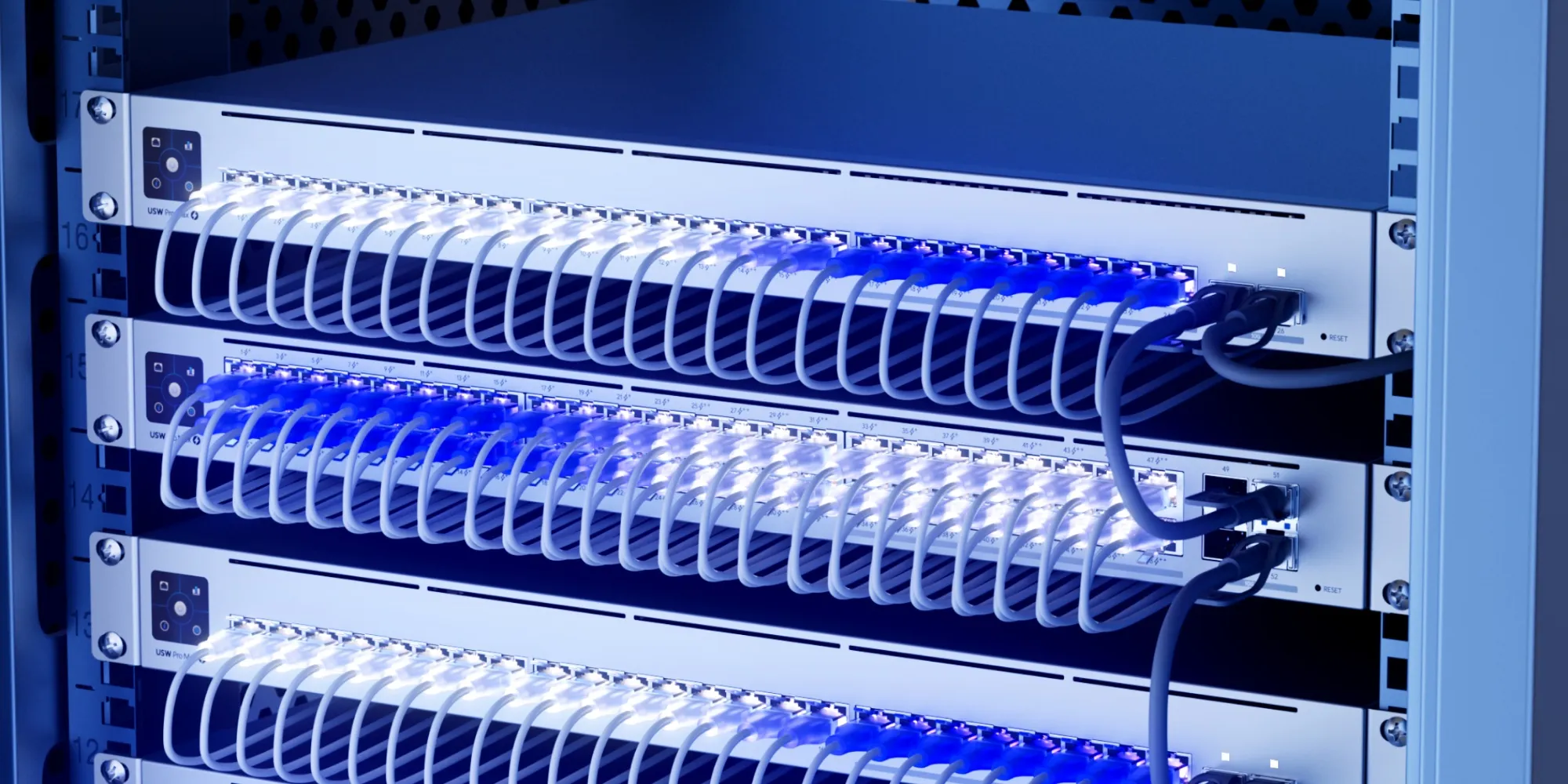
Having spent most of the last 5 years steeped in the HPE/Aruba networking ecosystem, I didn’t pay much attention to what Ubiquiti has been doing, as their primarily Prosumer and small business market segment didn’t significantly overlap with the large global customers I was working with at Aruba. HPE did venture into the SMB space with the InstantON product line, and have been reasonably successful at it, but the consulting work I was doing rarely went anywhere near that space. Now that I’m free of any competitive constraints. I’m taking another look at a product line that has clearly evolved.

A while back, I posted about how to set up an Aruba wireless bridge using the built-in mesh method. Today I’ll show you how to accomplish a similar goal, but using the Wi-Fi Uplink approach. You’ll need to do it this way if you:
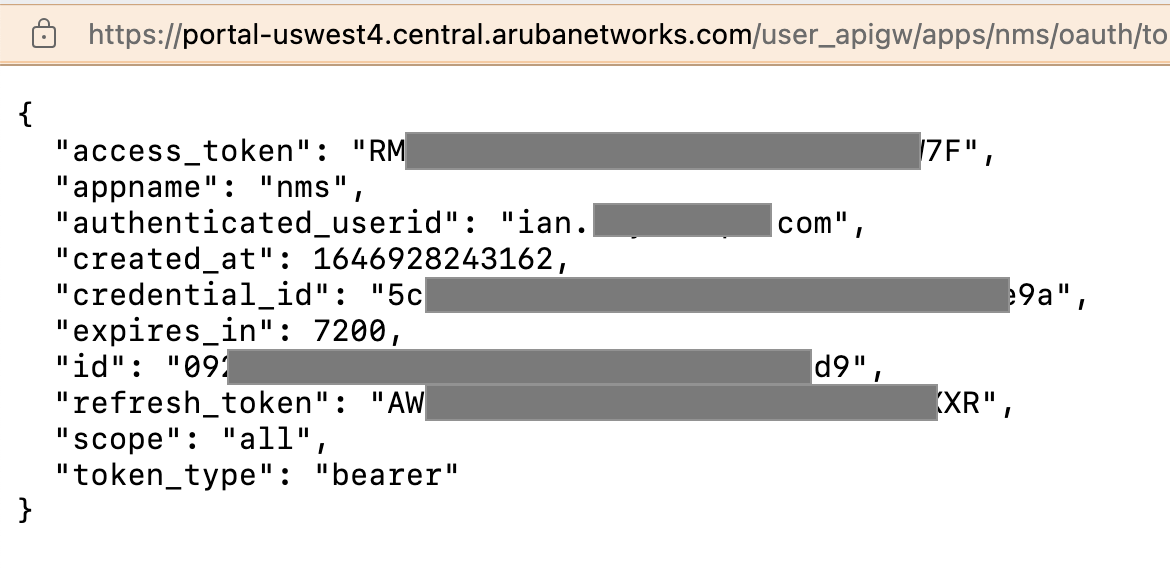
Yep. Another post about code. No, I’m not a software developer, I’m just a lazy network engineer who has an allergic reaction to doing GUI-based management of large environments. And thus I code because that’s a growing part of being a network engineer in the 2022.
If you’ve been using Ekahau for a while, you probably already know how painful it can be to generate a list of APs from within a custom report template - and even then, it’s not the most useful thing in the world just for being in Word format.
 In which I describe how to enhance your survey data using controller data and a little Python.

One of the most underrated features of Aruba wireless hardware is its ability to be used as a wireless bridge. Running a cable to provide power and data to an AP is always the best way, but sometimes you just can’t get one there and have to go wirelessly.
In my previous posts about the ArubaOS API, I’ve given a general framework for pulling data from the AOS Mobility Conductor or a Mobility Controller. Today I’m going to show how to retrieve the AP database and dump it into a CSV file which you can then open in Excel or anything else and work all kinds of magic (yes, I know, Excel is not a database engine, but it still works rather well with tabular data)
Another quick bit today - this is the basic framework for using the REST API in ArubaOS. Lots of info at the Aruba Developer Hub. This is primarily for executing **show** commands and getting the data back in a structured JSON format.
However, be aware that not all **show** commands return structured JSON - some will return something vaguely XMLish, and some will return the regular text output inside a JSON wrapper (originally the **showcommand** API endpoint was just a wrapper for the actual commands and would just return the CLI output, as it still does for several commands)
You can always go to **https://:4343/api** (after logging in) and get a Swagger doc for all the available API calls - although owing to system limitations, the description of those endpoints isn’t generally there, but it can be found in the full AOS8 API reference.
This blog entry does not deal with sending data *to* the ArubaOS device.
Just a quick post today to highlight a couple of my favorite ArubaOS v8 CLI commands of the week.
The first is **show configuration diff **. This handy tool lets you compare what’s different between two different hierarchy containers. Great for chasing down obscure config items.
The second is **show references**, followed by a profile type and name - it will tell you all the profiles that reference the one provided. Very handy if you’re trying to clean up cruft and want to find profiles that are abandoned and no longer useful, or if it won’t let you delete a profile because it is still in use (where it will annoyingly not actually tell you where)
That’s all for today!

It’s not uncommon for architects and interior designers to get on us wireless guys for cluttering up their aesthetic, so I always try to get on their good side whenever possible. They don’t tend to complain about “necessary” stuff like light switches and fire alarms, but for some reason, they never see network infrastructure as “necessary”.
Aruba, Code, IoT, Location Tech, Wireless
CWIDP, CWIIP, CWISA, location services, mapping, Meridian, Python

Yesterday, I posted about leveraging the Meridian API to get a list of placemarks into a CSV file. Today, We’ll take that one step further, and go the other way - because bulk creating/updating placemarks is no fun by hand.
Aruba, Code, IoT, Location Tech, Wireless
CWIDP, CWIIP, CWISA, location services, mapping, Meridian, Python

It seems fitting that the week in which I became the first to pass the CWIDP (Certified Wireless IoT Design Professional) certification would be one where I happened to be onsite doing a BLE location project with Aruba Meridian.
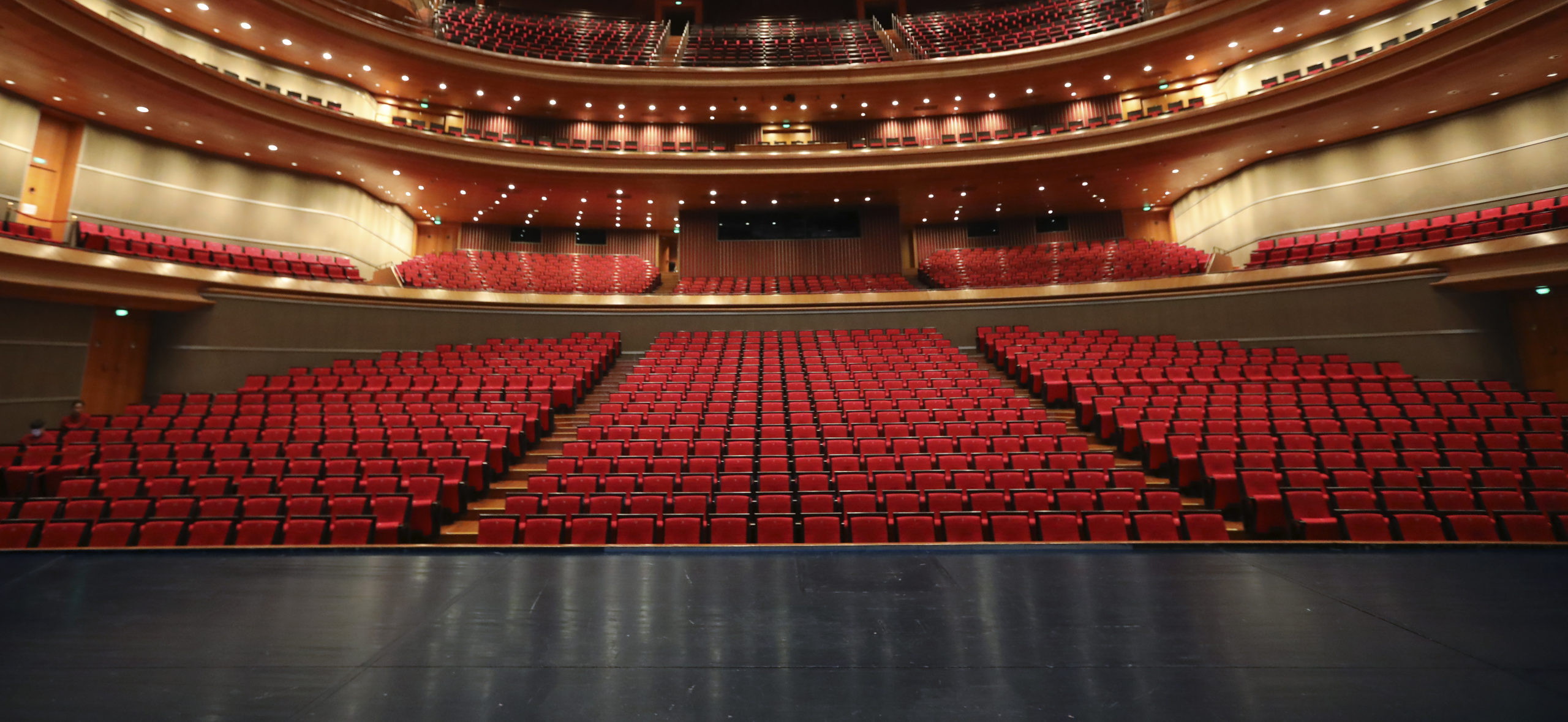
I was recently (March 2021) tasked to do a design for a small 450-seat auditorium and provide capacity and throughput numbers. Those who have known me for a while probably know that this type of auditorium is kind of a sweet spot for me, having done designs for a number of church sanctuaries of various sizes. In this post, I’m going to get into the nitty gritty details of making sure that not only does an auditorium have sufficient wireless capacity to meet the connectivity needs of the space, but also to have realistic expectations of what the performance will look like in order to build sufficient backend networking infrastructure without needlessly overbuilding it.

Let’s jump into the time machine and head back to the turn of the century (21 years ago, y’all… can you believe it?). It was a time when cable TV was king, and you could usually count on a cable outlet in almost every room of the house, when a cable TV package could easily come with half a dozen converter boxes, before the term “cord-cutter” struck fear into the hearts of cable executives. and when Netflix was an upstart DVD by mail company. This was also when a brand new technology called “Wi-Fi” had just showed up on the scene. Broadband internet (a whole 5 megabits!) was starting to find its way into homes served by cable TV, and it made dialup look severely lame. Usually these “cable modems” were hooked directly up to a single computer, either via USB, or via Ethernet if your computer was really snazzy. Often, these computers were directly connected to the internet with no firewall software, which led to all kinds of shenanigans.

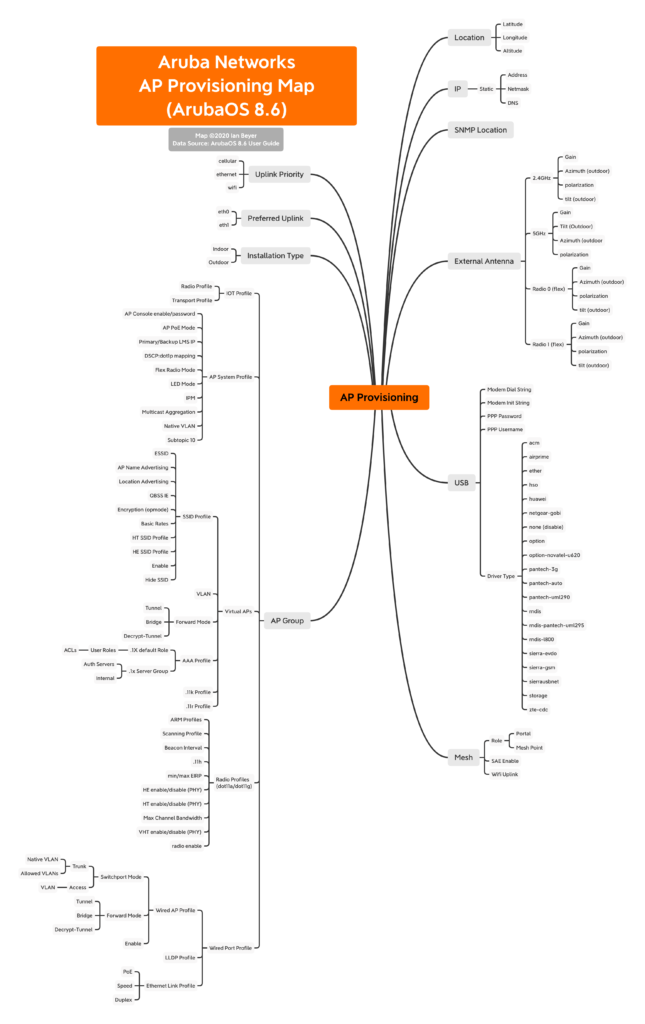
As part of trying to wrap my own head around the various profile dependencies in actually provisioning an Aruba AP , I’ve mapped it out. This is the that goes into this process:
provision-ap
read-bootinfo {wired-mac|ip-addr|ap-name}
``
reprovision {serial|wired-mac|ip-addr|ap-name}
As you go to provision an AP, start on the outside of this map and work your way in. This will make sure that all the various profiles you need are in place. The web UI hides some of this stuff from you and doesn’t organize it as logically as one might expect.
When doing this on the CLI in Mobility Master Conductor, make sure you’re in the right corner of your hierarchy (namely, */md* or */md/GROUP*). And remember that on MMMCR, ***show run*** is not nearly as useful as ***show config effective***… And ***config purge-pending*** sure comes in handy when you goof something up.
You can also do ***show profile-hierarchy*** but that only shows the profile entries and it doesn’t fit neatly in a terminal window.
Lastly, don’t forget about **show references** to see what other profiles reference the one you’re interested in.
*Caveat: This is not comprehensive by any stretch. There are dozens more options, these are just the more common ones. If I goofed, let me know. All the gory details can be found in the ArubaOS User Guide.*
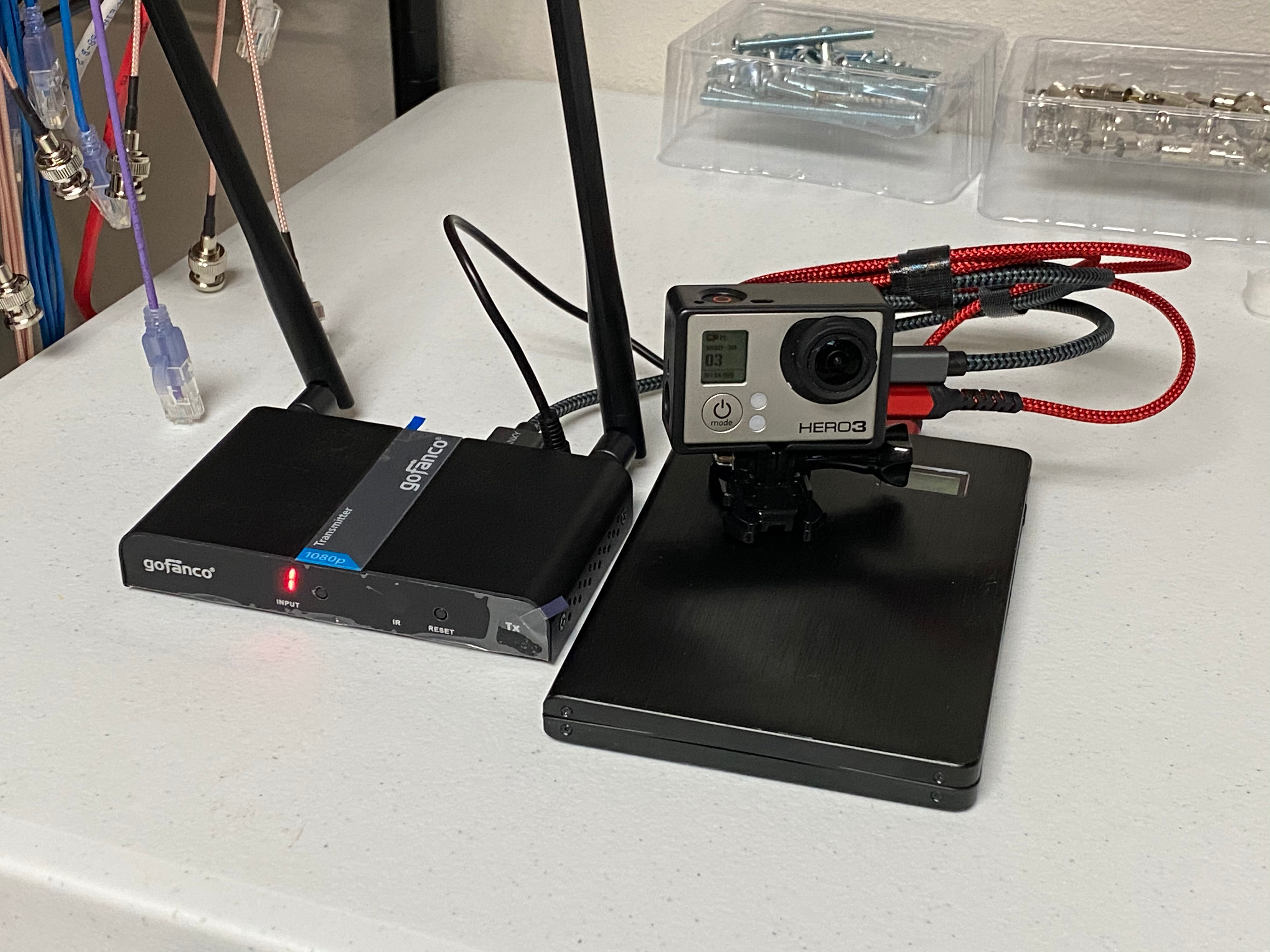
A few weeks ago, I went to Amazon and picked up a cheap wireless HDMI transmitter to solve a camera connection challenge at the church. I needed to send a GoPro feed back to the booth without running cables all over the floor (or worrying about the GoPro’s live streaming latency – it uses HLS with a real short segment size– and getting that stream into the switcher was not a trivial task).
As is so often the case with these “off-brand” (or less well-known brand) devices, my expectations were low, and I fully expected to return it after a week.
That didn’t happen. Not only was it easy to set up, the picture quality was excellent, and latency almost nonexistent. I immediately picked up another set to run a mobile confidence monitor cart. It’s also able to send IR control to the receiver.
As it turns out, GoFanco is starting to make a name for themselves in the video accessories market for both pros and consumers, not entirely unlike how BlackMagic got their start. They offer quite a wide assortment of gizmos to move video signals around.
 The mobile GoPro rig. This could also potentially be used for linking live UAS footage back to a switcher.
Since I am a wireless network engineer by profession, I had significant concerns about how well this would behave in the spectrum - it advertises that it uses 5GHz, and I expected it to grab as much spectrum as it could (as most wireless video devices tend to), and walk all over everything else in the band. So I hauled out my Ekahau Sidekick and its spectrum analyzer to see how well-behaved it would be… And I was pleasantly surprised to discover that it was *very* well-behaved on the Wi-Fi spectrum… because it’s actually running Wi-Fi!
It’s running 802.11ac on a 20MHz channel (and the channel selection allows 10 different channels, which tells me it’s running on UNII-1 and UNII-3 and avoiding the DFS bands). Airtime usage is quite efficient, around 4%, which is shocking for a video application. And perhaps most useful is that it runs on 5VDC, and the supply is rated at 2A… Which means I can use a USB battery to power the transmitter and the GoPro (and a 20Ah slice will run this rig All. Day. Long.
Additional features allow not just 1:1 link, but 1TX:2RX, 2TX:1RX, all using a single channel. And because it’s quite efficient in spectrum/airtime usage, it does this in such a way that will coexist peacefully with your Wi-Fi.
It also means that if a presenter brings a laptop and wants to put it up on the screen, the transmitter can be powered from the laptop itself. This thing is a definitely a worthwhile addition to your tool kit.
The gory technical details,
The mobile GoPro rig. This could also potentially be used for linking live UAS footage back to a switcher.
Since I am a wireless network engineer by profession, I had significant concerns about how well this would behave in the spectrum - it advertises that it uses 5GHz, and I expected it to grab as much spectrum as it could (as most wireless video devices tend to), and walk all over everything else in the band. So I hauled out my Ekahau Sidekick and its spectrum analyzer to see how well-behaved it would be… And I was pleasantly surprised to discover that it was *very* well-behaved on the Wi-Fi spectrum… because it’s actually running Wi-Fi!
It’s running 802.11ac on a 20MHz channel (and the channel selection allows 10 different channels, which tells me it’s running on UNII-1 and UNII-3 and avoiding the DFS bands). Airtime usage is quite efficient, around 4%, which is shocking for a video application. And perhaps most useful is that it runs on 5VDC, and the supply is rated at 2A… Which means I can use a USB battery to power the transmitter and the GoPro (and a 20Ah slice will run this rig All. Day. Long.
Additional features allow not just 1:1 link, but 1TX:2RX, 2TX:1RX, all using a single channel. And because it’s quite efficient in spectrum/airtime usage, it does this in such a way that will coexist peacefully with your Wi-Fi.
It also means that if a presenter brings a laptop and wants to put it up on the screen, the transmitter can be powered from the laptop itself. This thing is a definitely a worthwhile addition to your tool kit.
The gory technical details,
- Channel 0: Wifi Channel 36 (20MHz) (Default)
- Channel 1: Wifi Channel 44 (20MHz)
- Channel 2: Wifi Channel 157 (20MHz)
- Channel 3: Wifi Channel 157 (40MHz)
- Channel 4: Wifi Channel 149 (20MHz)
- Channel 5: Wifi Channel 153 (20MHz)
- Channel 6: Wifi Channel 149 (40MHz)
- Channel 7: Wifi Channel 153 (40MHz)
- Channel 8: Wifi Channel 165 (20MHz)
- Channel 9: Wifi Channel 161 (20MHz)
This appears to be fairly smart frequency selection behaviour since these preprogrammed channels look like it will never set itself up on the secondary channel of a 40MHz pair, which is good for co-existence with other Wi-Fi. When powering up the unit, it will start on 0 but then switch to the last channel it was using once it completes booting, which only takes about 5 seconds.
Each channel is its own encrypted SSID named LK\_.
There is a pair of LEDs on each unit: The transmitter has one that indicates it is getting a good HDMI signal, the other indicates that it has synced up with the receiver. On the receiver, one indicates that it has a good wireless signal (solid indicates a connection, blinking indicates active data transmission), and the other indicates that it has synced up with the transmitter. A mild annoyance here is that changing the channel on the receiver will not trigger the transmitter to switch channels. However, the included IR remote will let you do so. The transmitter also has an HDMI pass through, so you can insert it between a source and a monitor.
Here’s about a minute of traffic captured from the Sidekick. A channel change happens around 30 seconds in. The channel change process is pretty straightforward and exactly what you’d expect. When initiated from the receiver, it sends a deauth frame, and then the transmitter continues to beacon on its existing channel. When channel change is initiated on the transmitter, it will send a series of broadcast deauth frames to the SSID, change to the new SSID and start beaconing (this takes less than a second). Meanwhile, the receiver is looking for beacons from its pal, and when it sees the right SSID on its channel, it sends a broadcast probe request, gets the response from the transmitter, and goes through the standard association process. Management frames do not appear to be protected, so this device is vulnerable to deauth spoofing.
Data rate hovers around 100Mbps according to AristaPackets analysis of the capture. Given their use of off-the-shelf Wi-Fi for the networking component, I wouldn’t be surprised in the least to discover that the video protocol running underneath the hood was NDI, or something based on it. Why reinvent the wheel? I’d really love to crack open the encryption on this guy and see…
 Given that this is using standard 802.11, the advertised range is about 50 metres, but it could easily be made to go longer distances simply by attaching a 2x2 MIMO directional antenna. Antenna connectors are RP-SMA.
One caveat: When I first set it up, the receiver was having a hard time staying up and maintaining signal… I quickly discovered that I had grabbed the wrong 5V power supply, and it was only able to source up to 1A - This device definitely needs more juice than that. Once I grabbed the correct 5V power supply, everything worked great. If you use a USB cable to power it, make sure the USB supply can source the full 2A (any supply designed for tablets or higher end smart phones should be adequate)
All in all, not a bad little setup for $200 and small change. It appears to be engineered above its price point, which is a great value.
Given that this is using standard 802.11, the advertised range is about 50 metres, but it could easily be made to go longer distances simply by attaching a 2x2 MIMO directional antenna. Antenna connectors are RP-SMA.
One caveat: When I first set it up, the receiver was having a hard time staying up and maintaining signal… I quickly discovered that I had grabbed the wrong 5V power supply, and it was only able to source up to 1A - This device definitely needs more juice than that. Once I grabbed the correct 5V power supply, everything worked great. If you use a USB cable to power it, make sure the USB supply can source the full 2A (any supply designed for tablets or higher end smart phones should be adequate)
All in all, not a bad little setup for $200 and small change. It appears to be engineered above its price point, which is a great value.
There’s a common saying among my network engineering peers: “It’s ALWAYS DNS!”. For those not familiar with the concept, this refers to the alarming regularity with which networking troubles end up being caused by something trivial, such as name resolution. And when it’s not DNS, it’s usually DHCP. Those two troublemakers alone are responsible for some ridiculously large percentage of network support issues. (At least until someone at a tier 1 provider inserts a typo into a route table advertised to half the internet via BGP, and takes everything down, but I digress.)
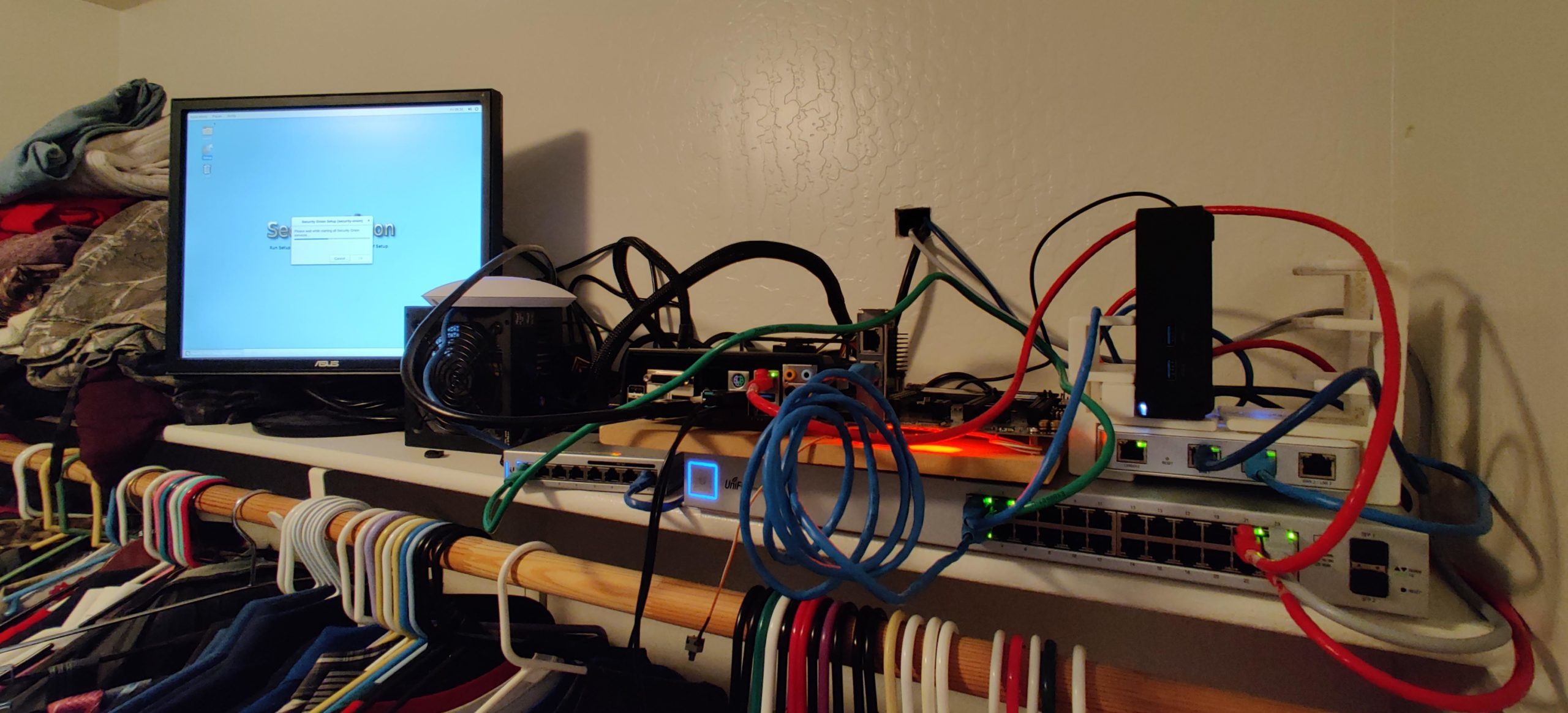 A key component of any IT engineer's toolkit is the lab. First in a series.

After our quick little tour of Aruba InstantON, I’m going to move up to the next level of Aruba gear: Instant.
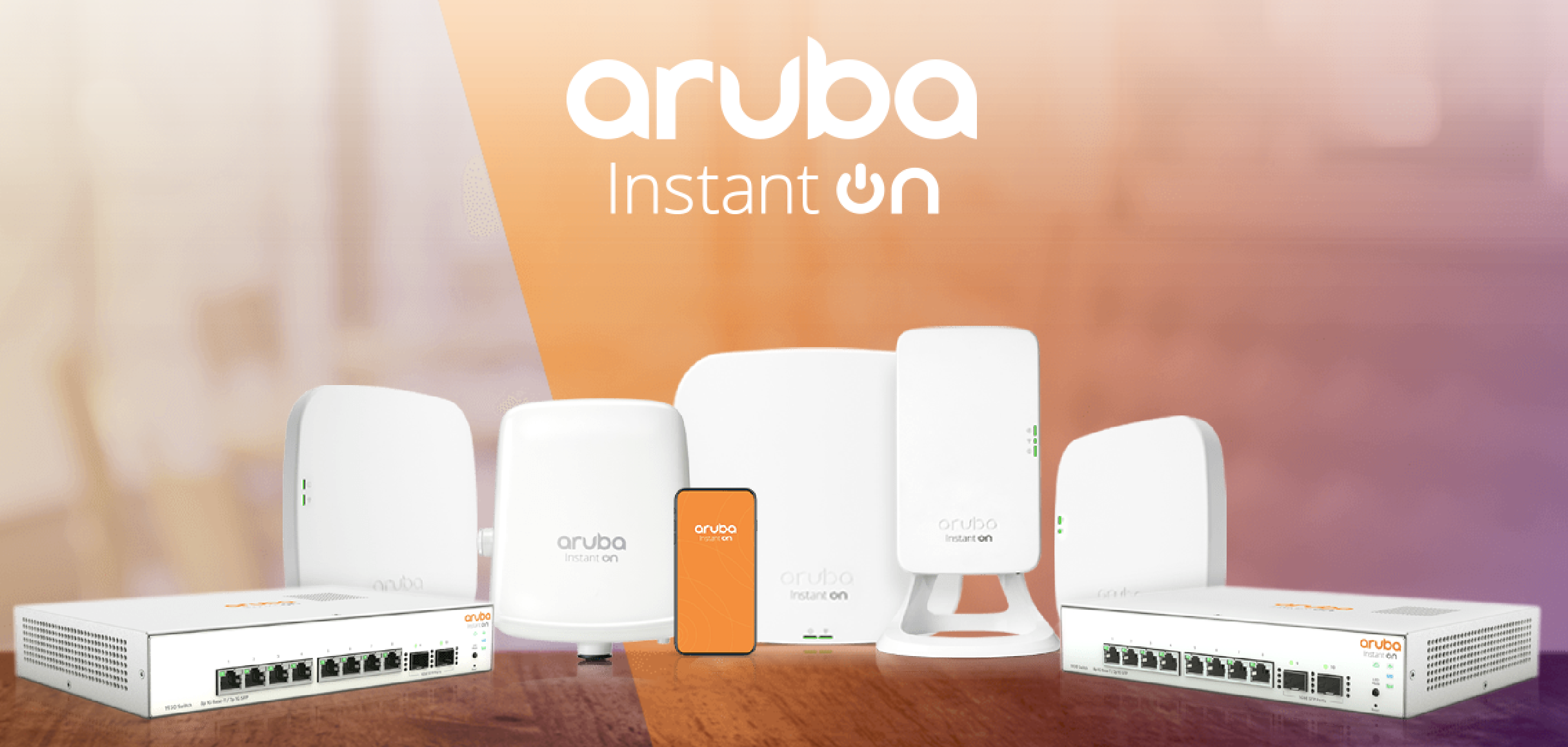 Aruba turned some heads last year when they announced a new product line for SMB, called InstantON. Read more about my experience...
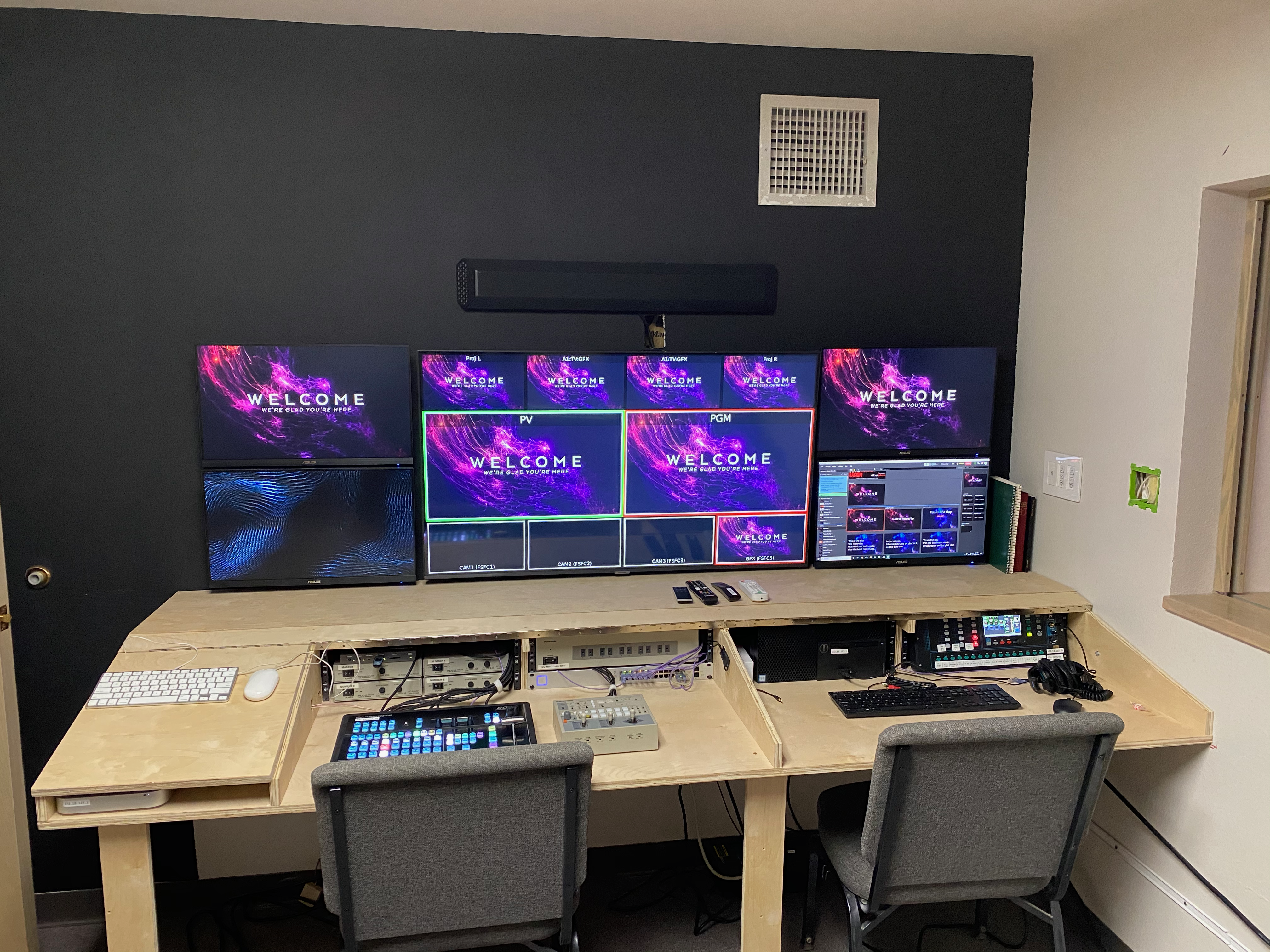
I’m going to veer off from my usual diet of wireless posts to bring you a howto post on the new video production desk that I built for the Family Life Center at our church.

Cover Image: Unmasked (detail), (Brian Wall, 2014)
Continuing the series about working from home, today I’m going to talk about the network inside your home, after it gets to your side of the router.
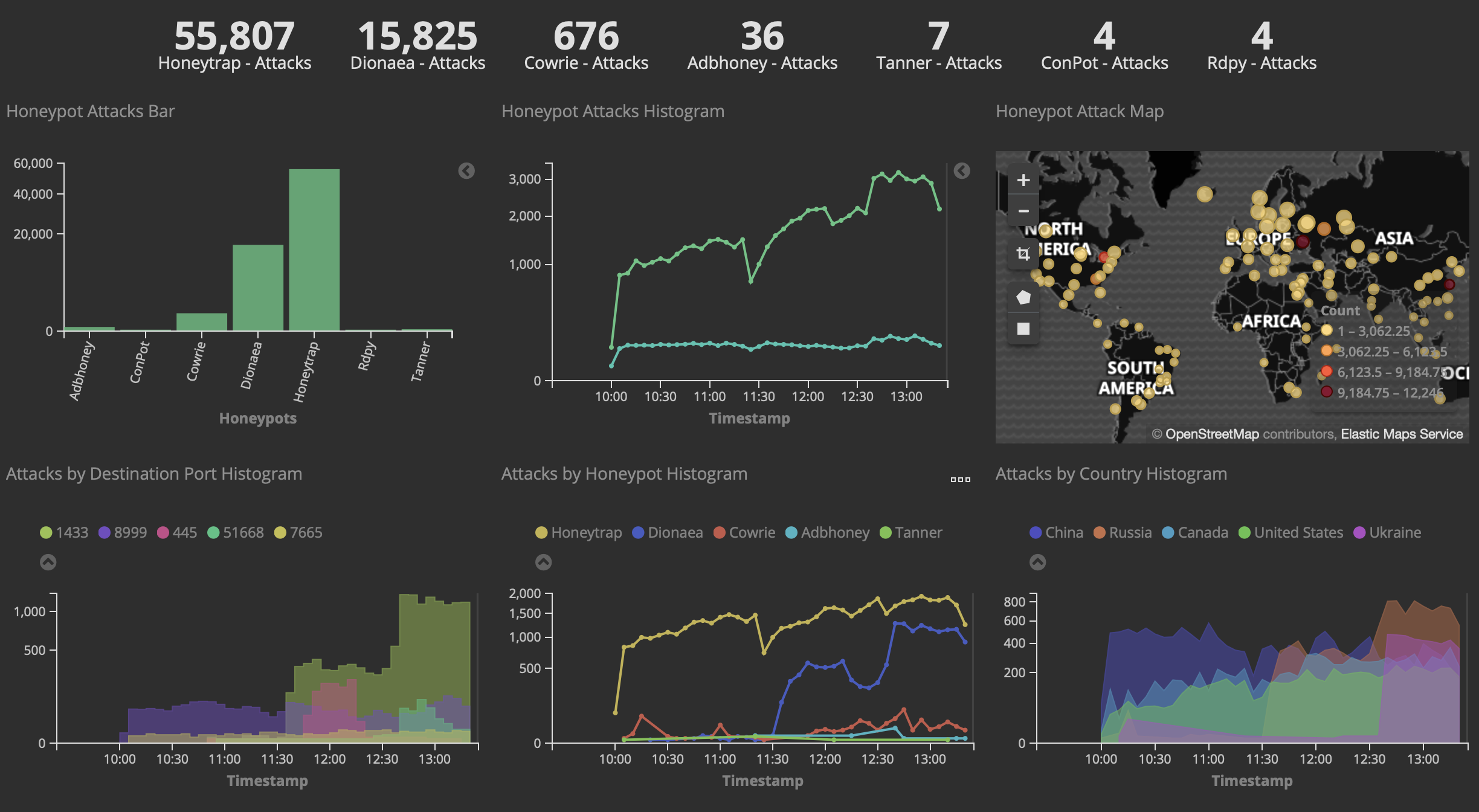
Yesterday, I saw a social media post from my friend Thorsten, who is an engineer for a large network security company, in which he shared some nifty dashboard graphics from his installation of a nifty little Linux distribution known as T-Pot (I’m a total sucker for great dashboards!).

In my previous post, I went over the basics of working from home. It’s worth noting here that many of these concepts can also be applied to your kids who might be taking school online - they’re teleworking just like you are, and face many of the same challenges. In this and future posts, I’ll be dealing with the tech basics required for a successful and productive home office.

Since working from home is a hot topic right now with everyone practicing social distancing, I thought I’d present a couple of posts about what works for me. I’ve been working from home in some form or another since 2011, and I think I’m starting to get the hang of it. We’ll start with some of the basics of remote work in this post, and in later posts, I’ll dig into the details of home office technology and creating a functional work space.
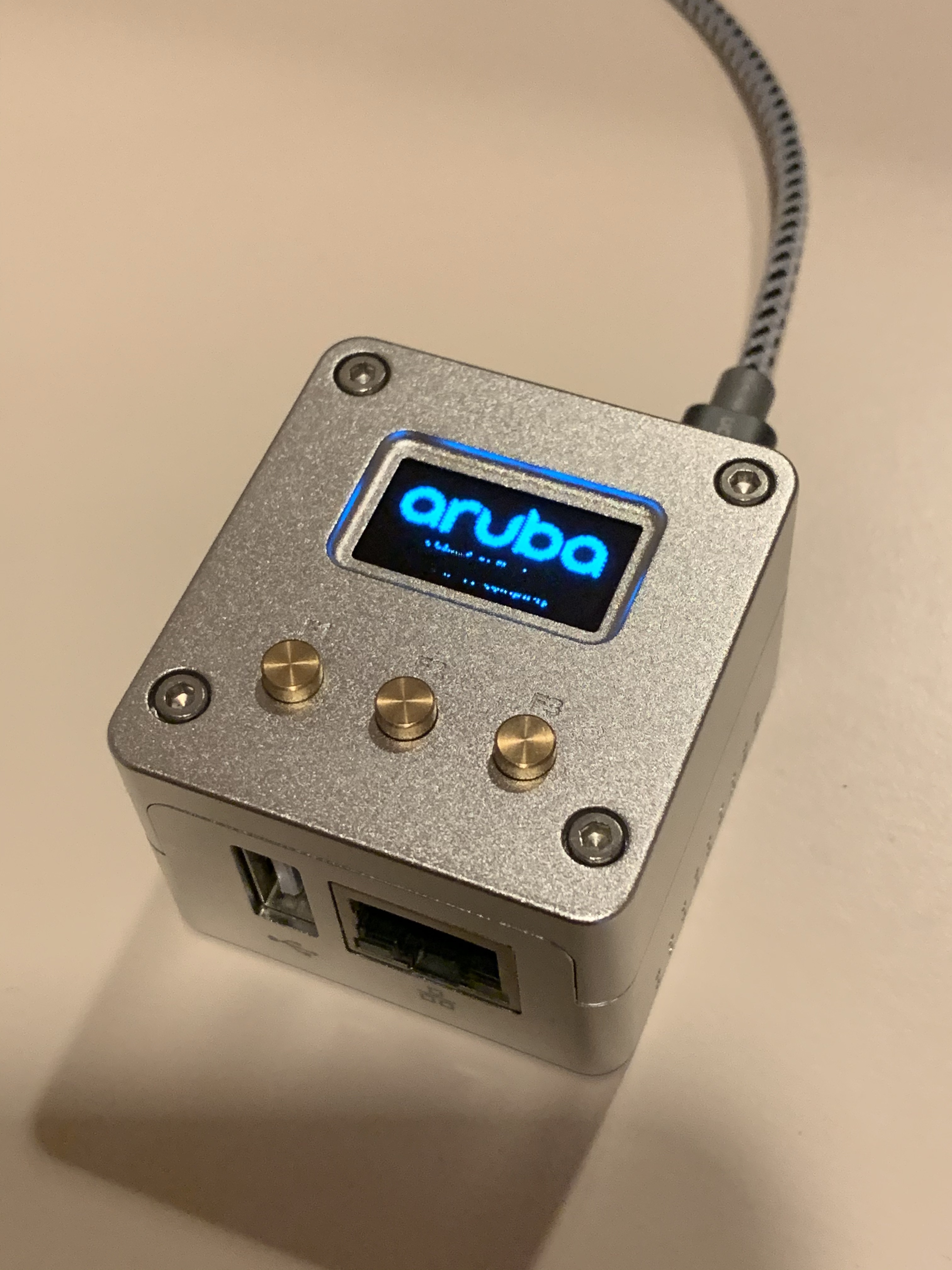
Recently, the nice people that employ me to be a wireless network engineer for them were kind enough to add a WLANpi to my toolkit (as well as that of several of my co-workers), and it is indeed a very handy gizmo for network engineering work.
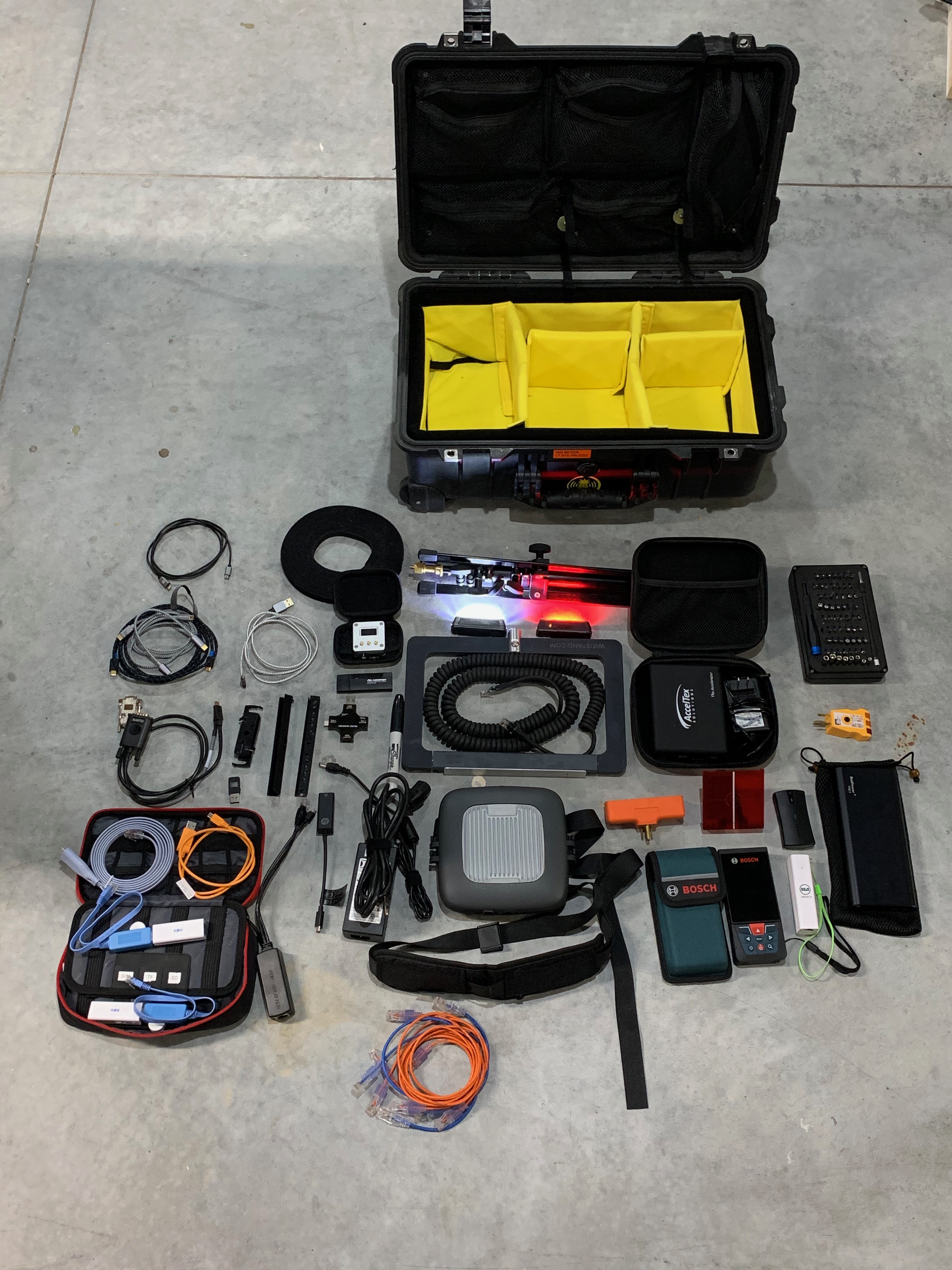
The life and contents of a survey kit is a dynamic one. Here’s what’s in my kit these days. The Pelican 1510 is airline carry-on size, because there’s no way they’ll let you check that stuff with the batteries (which are all just under the airline limit of 100Wh), and the contents are valuable enough that you probably don’t want it out of sight, or trust it to the airline baggage handlers. If you’re carrying this stuff, it’s because you need it at your destination. Downside is that the 1510 doesn’t allow the overhead bin to be closed on Embraer 135/145 regional jets.
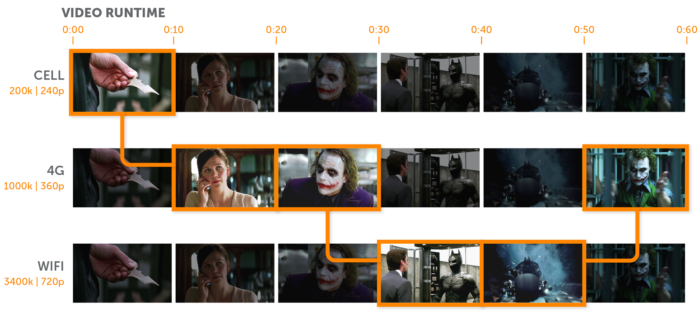
For those of us that work on wireless systems with a strong guest access component, the fine folks at Wowza Media Systems posted earlier this month about the inner workings of HTTP Live Streaming (Apple’s proprietary streaming protocol, or HLS) which accounts for about 45% of all streaming traffic - which tracks pretty closely to Apple’s market share of mobile devices.
Prior to getting hot and heavy with wireless networks, I did a lot of streaming infrastructure implementation for Wowza’s customers (as many of this blog’s readers are well aware - just go look into the archives!) HLS, which was released with the iPhone 3Gs, is designed from the ground up to handle the highly variable bandwidth and delay conditions inherent to mobile connections on Wi-Fi and cellular, while delivering a good streaming experience to the end user. It also allows streaming providers to leverage existing HTTP-based content delivery infrastructure.
Older streaming protocols like RTMP and RTSP are particularly unfriendly to wireless networks as they require a constant data stream at the stream bandwidth. For a video stream, much like a VOIP call, this requires consistent and timely medium access, which is definitely not a sure thing on Wi-Fi the way it is on Ethernet. The tradeoff is that the delay from live on HLS (a minute or two) is much higher than it is on RTSP (a few frames/milliseconds) or RTMP (a few seconds).
When working down at Layer 2, it’s usually helpful to understand what’s going on up the stack, especially with regards to what kind of unholy things are being done inside HTTP (which we may or may not have visibility into because of encrypted packet and segment payloads). In terms of the ISO model, HLS is probably best described as Layer 5 (the HTTP segmentation) and Layer 6 (the video data).
My good friend Jim Palmer (Not the baseball player) spoke at the Wireless LAN Pros Conference last year about the effects of user bandwidth throttling in a guest wireless environment with heavy streaming usage (predominantly Netflix). Understanding how HLS works in this context is key to understanding why the network behaves the way it does when you do that throttling. His talk is well worth ten minutes of your time. He’s also had some informative appearances on the Clear To Send Podcast (Episode #136, on antennas and filters), the Wireless LAN Pros podcast (Episode 116 on Captive Portals), and WiFi Ninjas Podcast (Episodes 19 and 20 on Airport Wireless Design).
So, here’s the link to Wowza’s post on the subject. I hope they post one about MPEG-DASH soon (from an HTTP standpoint, DASH works in a similar fashion).

One of my favorite things to do when I’m at a Disney park is to play the wireless nerd’s version of Hidden Mickeys: Trying to spot the myriad creative ways in which Disney’s Imagineers have blended their excellent wireless network into the carefully contrived scenery. It truly is magical how they can make wireless everywhere while keeping it nearly invisible.
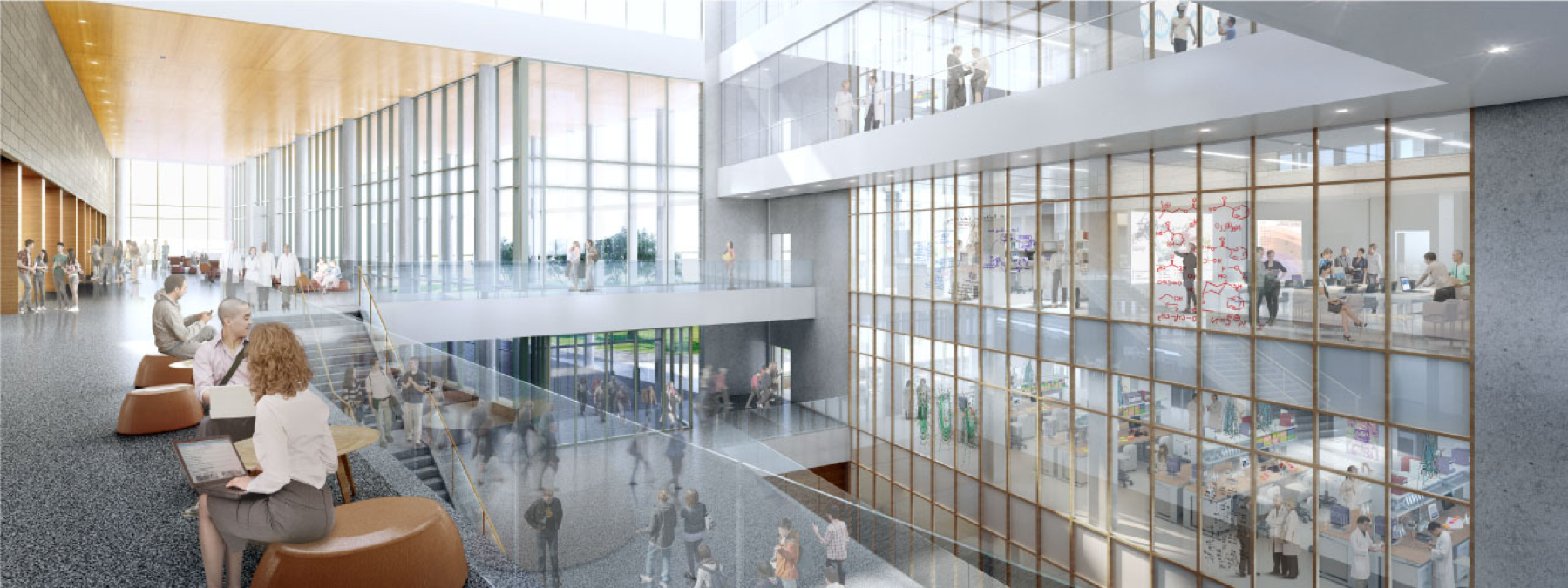
How I learned to stop worrying and love predictive modeling
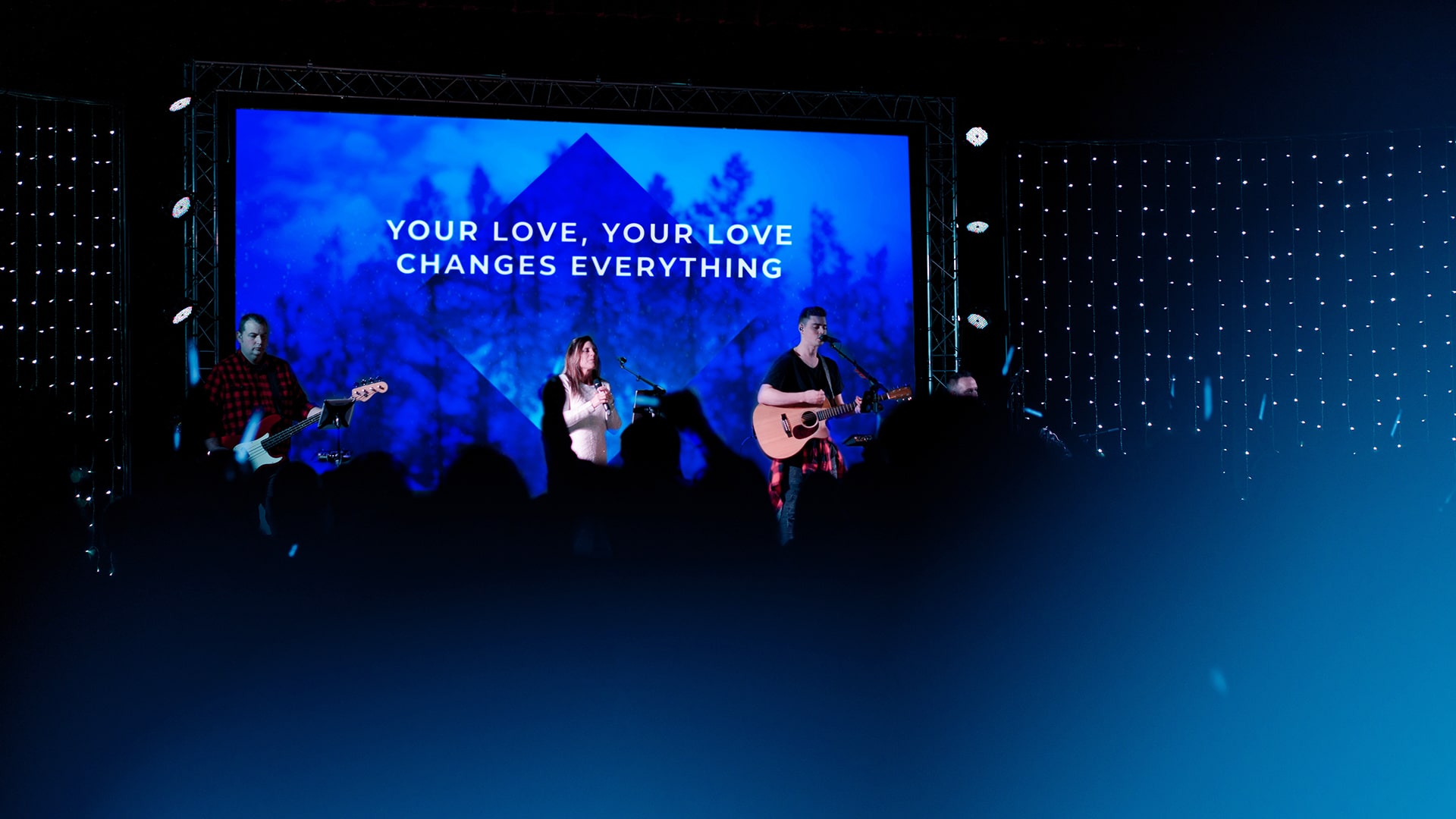
I’m going to veer off the WiFi trail for a bit here and talk about presentation software that’s used predominantly in the House of Worship space, but also increasingly in corporate production.
“My home wi-fi sucks, how can I fix it?”

Second in a series about our first deployment of a Mist Systems wireless network.

First in a series about our first deployment of a Mist Systems wireless network.
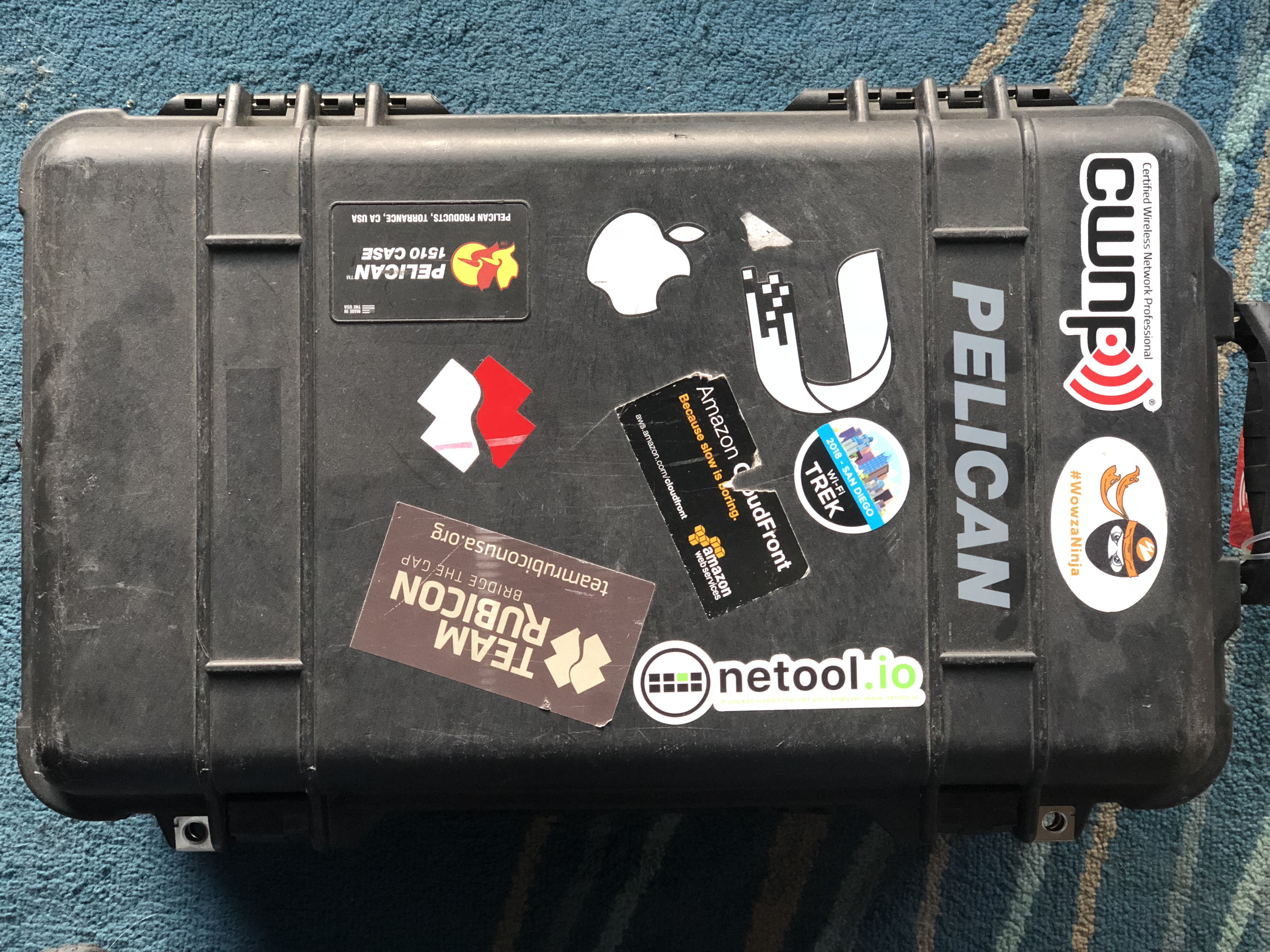
As I prepare for another trip to a customer site, I figured I’d post the contents of my wireless engineering go-kit for the benefit of others wanting to put one together. I’ve posted previously about my streaming go-kit, which has largely been retired as I’m not doing nearly as much streaming as before, having shifted over to Wi-Fi. Amazon links in this post are affiliate links, and it’s where I bought most of this stuff over the course the the last several years. Some of it was freebies from conferences like the Wireless LAN Professionals Conference.
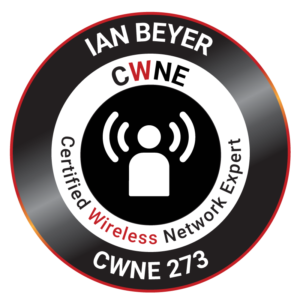
After several years of training, learning, and experience doing, I’ve just been awarded CWNE certificate #273. Stay tuned for some posts about that process and how I got there.
One of the most fundamental concepts underlying modern data networking is that of the network
I’ve been doing a little Raspberry Pi hacking lately, and put together a neat way to have physical status LEDs on your desk for things like EC2 instances.
Live streaming has been a “thing” for some time. I work with many churches to help them solve their streaming challenges and develop their technology strategy for streaming. One of the most frequent questions I hear is, “can I stream to Facebook Live and still keep my other stream?” Fortunately, this is a lot easier than it used to be. There are variations on this question, but they all boil down to wanting to know how to send one stream to multiple outlets to expand audience reach.
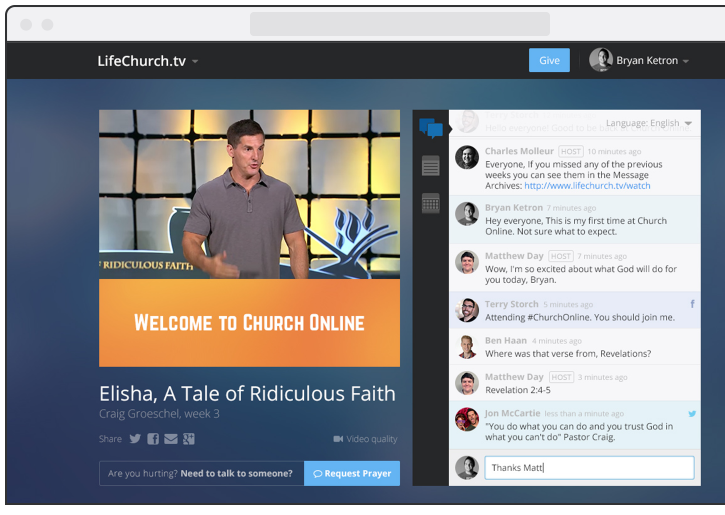
Today’s post will be a brief tutorial on using Bitmovin’s excellent HTML5 video player with Church Online Platform.
If you’re a church that is wanting to go live, and you haven’t discovered COP, it’s a marvelous product. The fine folks on the life.church Digerati Team (who created the Bible App and made it available on just about every platform known to mankind). It’s a free hosted platform that lets you deliver church online. All you have to do is bring your own streaming provider and provide an embed code. You can use your provider’s player, or you can use your own player. The Digerati team are also a client of mine, and I really enjoy working with them - they’re talented, nerdy, and very good at what they do. (most recently, I helped them build out their Wowza Streaming Engine capability for automating the scheduling and delivery of simulated live events.)
One of my favorite video players out there right now is from Bitmovin, and they provide a CDN-hosted player that provides excellent analytics (complete with API access for the especially nerdy), and usage is free for the first 5000 impressions (and pricing is quite reasonable as you scale up from there). For this reason alone, it’s an excellent choice for churches getting started with streaming. Its other major benefit is that because it is written in HTML5 and Javascript, it will work on just about anything you can throw at it (for the really archaic devices, it still has a Flash component). It also is designed from the ground up to support the new MPEG-DASH standard, but if you’re using a streaming CDN or service that doesn’t provide DASH, no big deal, as the player also supports HLS, even for Flash delivery for those 3 devices that still haven’t discovered modern streaming technology or are running a particularly ancient version of Android. Added bonus, BitMovin’s player also supports VR and 360 streaming (as does Wowza Streaming Cloud).
For starters, you’ll need to sign up for an account, which will give you player information. One thing you’ll want to make sure you do is add your churchonline.org domain to the allowed domains for your license key. This is under Player/Overview:
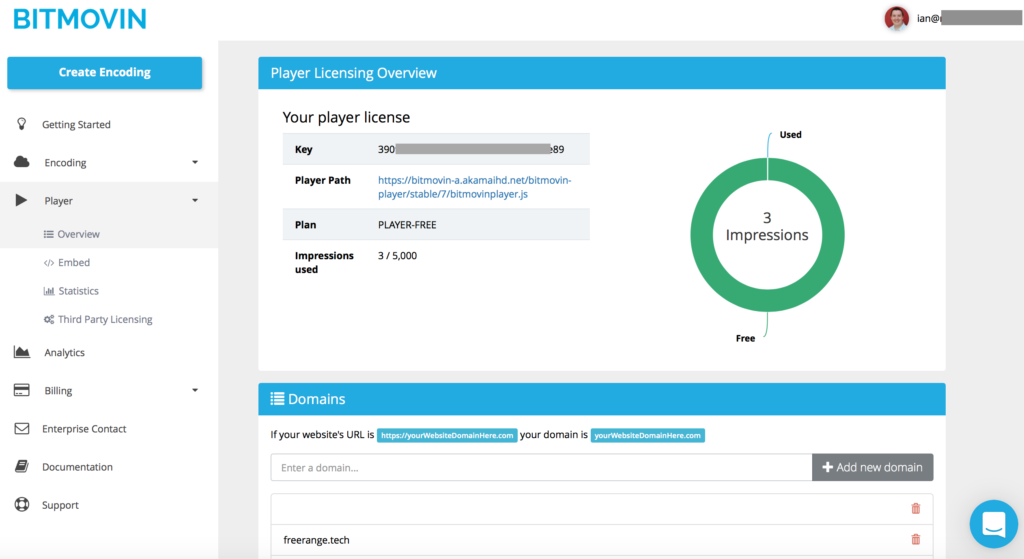 If you forget to do this, the player will simply show an error telling you you need to do it. This keeps someone from using your player key on their site, so be sure to use yourdomain.churchonline.org, not just churchonline.org.
To put this in your COP page, go to the event where you wish to use the player, and go to the Video tab:
If you forget to do this, the player will simply show an error telling you you need to do it. This keeps someone from using your player key on their site, so be sure to use yourdomain.churchonline.org, not just churchonline.org.
To put this in your COP page, go to the event where you wish to use the player, and go to the Video tab:
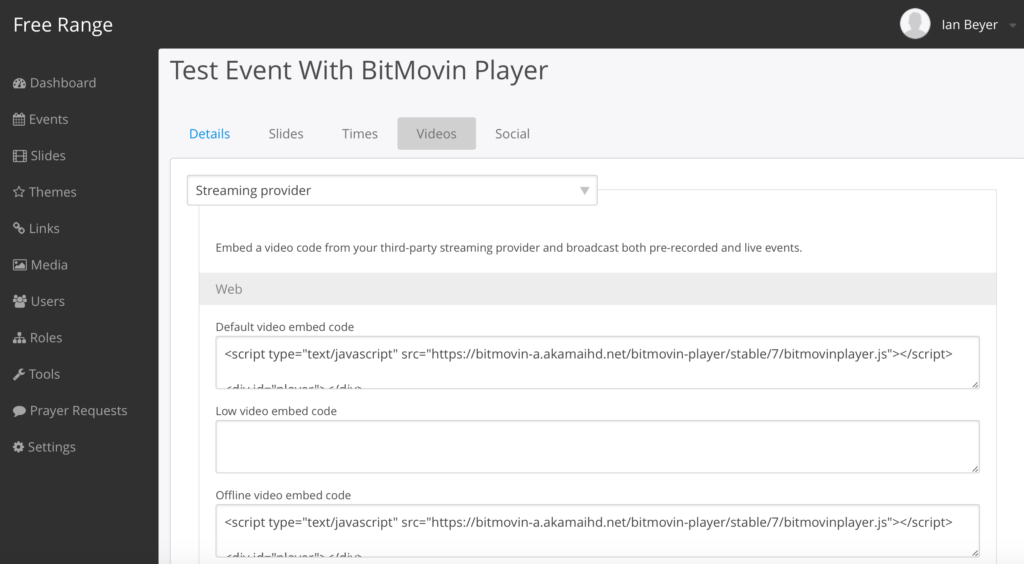 When you go to the Embed menu, you will see code to put it on the page (under Default video embed code). This is a little more involved than your standard embed code.
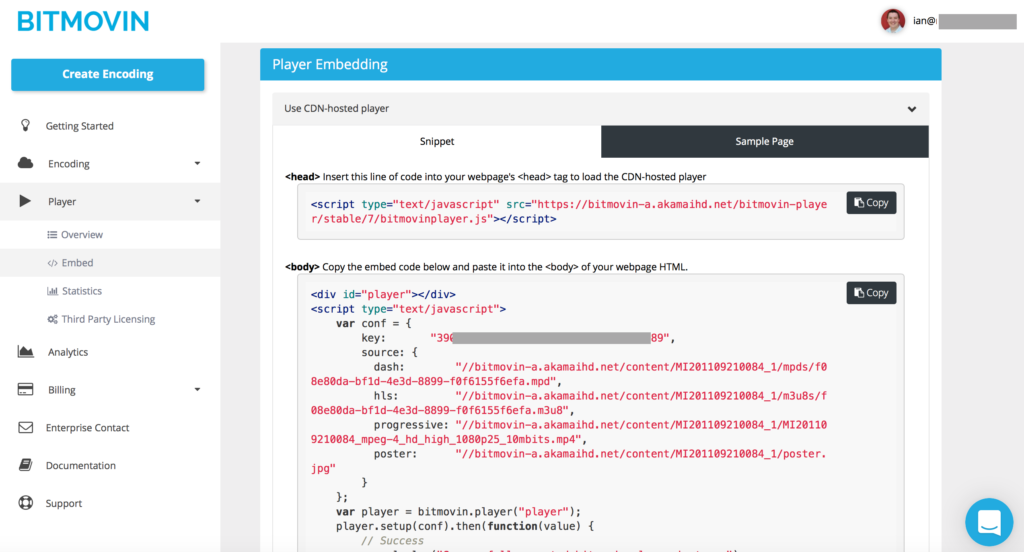 A couple of key things to note here with regards to COP:
- In order to put the stuff in your section, you’d need to create a custom theme in COP. This is not necessary (in fact, putting that script statement in the head that way doesn’t work). What you’ll need to do is simply put the

This is the internet, so at some point we’ve got to talk about cats. It’s in the rule book. The Internet runs on cats. Cat pictures, cat videos, and… cat cables.
Church IT, Hardware, IT, networking, Wireless
Apple, Caching, CDN, iOS, MacOS, netflix, Ruckus, Server

Recently, there was an excellent blog post from WLAN Pros about “Rules for successful hotel wi-fi”. While it is aimed primarily at Wi-Fi in the hotel business (where there is an overabundance of Bad-Fi), many of the tips presented also apply to a wide variety of large-scale public venue wifi installations. Lots of great information in the post, and well worth a read.
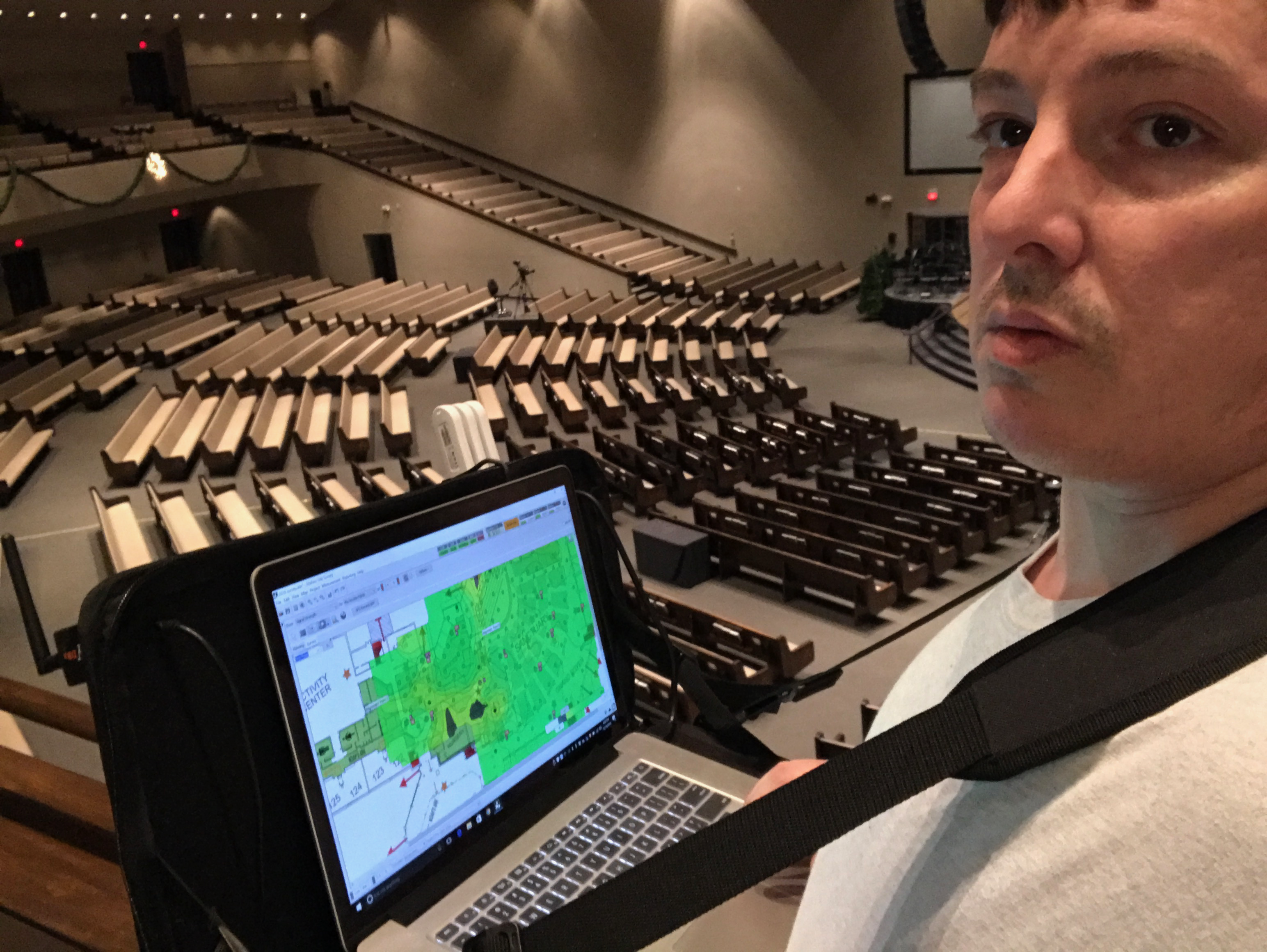
I’ve been spending the past week at the annual Wireless LAN Professionals Conference in Phoenix. This is one of my favorite conferences along with the Church IT Network conference, because I get to spend a couple of days geeking out hard with a whole bunch of REALLY smart people. The amount of information I’ve stuffed into my brain since last Friday is a little bit, well, mind-blowing…
Linking today to some great content from another Ian (ProTip: get to know an Ian, we’re full of useful knowledge). Ian Morrish posts about automating a variety of methods of automating A/V equipment using PowerShell. Lots of useful stuff in here.
Note: Somehow this got stuck in the publishing queue and never got the green light… So here it is, a few months after writing, but still relevant…
Recently I just completed a project for a small church in Kansas. Several months ago, the senior pastor asked me for a quote on a Windows server to provide authentication as well as file and print share services. During the conversation, a few things became clear:
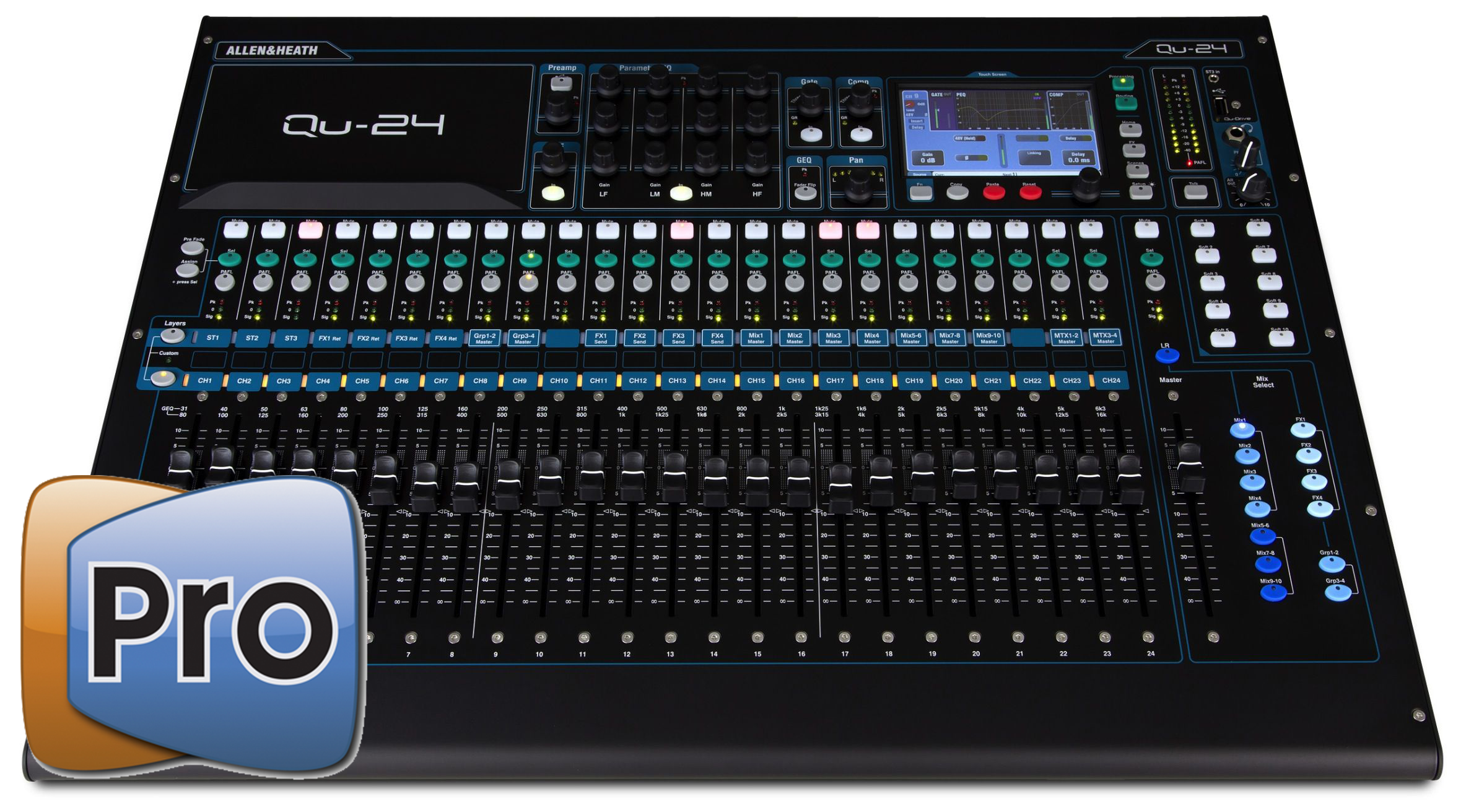
Our church is a small one. So its not always especially easy to fully staff our tech booth, and sometimes, one must fly solo, which adds to the workload, and sometimes stuff gets forgotten, like unmuting microphones for the choir or the person reading the scripture.

Last week while I was at the Church IT Network National Conference in Anderson, SC, a colleague pointed me to a fantastic donation from Microsoft via TechSoup: $5000/year in Azure credit. At a hair over $400/month, this means you can run a pretty substantial amount of stuff. Microsoft just announced this program at the end of September, so it’s still very new. And very cool. Credits are good any time within the 12-month period, so you don’t have to split them up month by month. They do not, however, roll over to the following year.

One of Wowza’s most underutilized yet most powerful features is the stream scheduler. I’ve blogged about it extensively in the past, and I’ll return from a long hiatus to do it again.
To recap some of the things you can do with this add-on:
- Create a virtual stream that plays a loop of server-side content
- Play a sequence of video content (think TV programming)
- A combination of both
- Play portions of a video file (in/out points)
- In combination with the LoopUntilLive module, do all that and then interrupt with a live stream
This gives you the ability to have a continuous 24/7 stream of programming including advertising. The output of this schedule is then treated by Wowza like any other stream, meaning it can be used as input to a transcoder, nDVR, or sent somewhere with Stream Targets.
The challenge we run into is that building the schedule in XML is not the most obvious thing in the world as there is not currently any integration of the module into the Wowza Streaming Engine Manager’s GUI.
As the schedule is written as a SMIL file (a specific XML schema) in an application’s content directory, It requires either logging in to the server and manipulating files with a text editor, or uploading into the content directory.
The other way is to build the schedule programmatically. Command-line PHP is an easy way to do this as PHP has some excellent PHP processing tools.
If you want to peek at the Java code for the scheduler module, Wowza has it up on GitHub.
A quick recap of the structure of the stream scheduler’s XML Schema:
- The entire file is wrapped in tags to indicate that this is in fact a SMIL file.
- an empty block - Wowza doesn’t currently make use of anything in here, but it’s a good place to put comments, and it makes for good XML.
- The meat of the file, a block that contains all the good stuff.
- Within the body block, there are two key element types:
- One or more blocks that define the names of the virtual streams that are created by the schedule.
- One or more blocks that define the content and timing of what gets published. Each playlist tag specifies the following attributes:
- **name** : The name of the playlist. This is arbitrary but should be unique within the file
- **playOnStream**: specifies which of the streams created in the block this playlist’s content will go to
- **repeat**: a boolean (true/false) value that specifies if this playlist loops until something else happens. If it runs out of content, the virtual stream will stop.
- **scheduled**: The date and time (based on server timezone) this playlist will be published to the stream. This is in ISO 8601 format without the T delimiter (YYYY-MM-DD HH:MM:SS)
- Within the block are one or more tags with the following attributes:
- **src**: The path and filename (relative to the application’s content directory) of the video file to play. This should be prefixed with **mp4:**as you would any other video file within Wowza. You can also put in the name of a live stream published within the same application.
- **start**: The offset (in seconds) from the beginning of the file where playback is to begin.
- **length**: Play duration (in seconds) from the **start** point. A value of **-1** will play to the end of the file. A value of **-2** indicates that this is a live stream.
- Once the end of this item is reached, it will move to the next element in the playlist. If there is no more content it will either loop (if **repeat** is set to true) or stop. If there is nothing further on the schedule, the stream will unpublish and stop. If this is not a repeating playlist, It’s generally a good idea to put a buffer video (a number of minutes of black video or a logo works just fine) at the end of it to fill any gaps to the next playlist.
So, the schedule is pretty straightforward, but it can get tedious to build. I previously posted about a way to generate this with a spreadsheet in Excel. This is clunky, but can save a lot of typing, and is good for repeating events.
But this lacked a good visual interface. As I was working on a project for a client to translate a schedule generated from their video content management system into the Wowza Stream Scheduler’s XML, it occurred to me that there was another structured schedule format that could be translated easily into XML: iCal. This calendar format is defined in RFC 2445 and is widely used by many calendaring systems.
Unfortunately, iCal is not XML to begin with (iCal/RFC2445 predates XML by a decade), which would be WAY too easy. Here is a sample of iCal data out of Google Calendar that contains two events (Google *used* to make their calendar shares available in XML but it seems that is no longer the case):
[code]
BEGIN:VCALENDAR
PRODID:-//Google Inc//Google Calendar 70.9054//EN
VERSION:2.0
CALSCALE:GREGORIAN
METHOD:PUBLISH
X-WR-CALNAME:Wowza Event Scheduler Calendar
X-WR-TIMEZONE:America/Chicago
X-WR-CALDESC:
BEGIN:VEVENT
DTSTART:20161017T160000Z
DTEND:20161017T170000Z
DTSTAMP:20161016T164145Z
UID:xxxxxx@google.com
CREATED:20161012T212924Z
DESCRIPTION:mp4:video1.mp4\,0\,-1
LAST-MODIFIED:20161016T164138Z
LOCATION:teststream
SEQUENCE:3
STATUS:CONFIRMED
SUMMARY:11am Broadcast
TRANSP:OPAQUE
END:VEVENT
BEGIN:VEVENT
DTSTART:20161017T170000Z
DTEND:20161017T180000Z
DTSTAMP:20161016T164145Z
UID:xxxxxx@google.com
CREATED:20161016T164116Z
DESCRIPTION:mp4:video2.mp4\,0\,1800\nmp4:video3.mp4\,0\,1800
LAST-MODIFIED:20161016T164118Z
LOCATION:teststream
SEQUENCE:1
STATUS:CONFIRMED
SUMMARY:Noon Broadcast
TRANSP:OPAQUE
END:VEVENT
END:VCALENDAR
[/code]
As you can see, this has some hints of XML: Opening and closing tags, attributes, and the like. Fortunately, Evert Pot wrote a handy little PHP function to make the conversion to XML.
One of the really nice things about JSON and XML in PHP is that the objects that contain them work just like any other nested arrays, and so extracting specific items is ridiculously easy. There’s a lot of data within the VEVENT block that we just aren’t interested in. We really only care about the start and stop times, and a few other fields like DESCRIPTION, LOCATION and SUMMARY, which we can hack to contain the names of the streams and content. In this example, I use DESCRIPTION to contain the names of the video files on each line (and additional comma-separated data regarding start and end points, and LOCATION to specify what stream it should be published on. SUMMARY can be used as the playlist name attribute There are a number of other iCal fields that can be used for this as well.
In order to use this data, we need to do the following:
- Use the start/end times to calculate a duration
- Make a list of the streams to publish to
- figure out what video to play when
- Convert datestamps to the local server time
For starters, we’re going to need to set a few defaults:
That’s a mouthful, isn’t it?

A while back, I posted about getting mobile Internet in Haiti. As technology changes rapidly, especially when it comes to Haitian internet access, I figured I’d post an update, having just returned from there in late February.
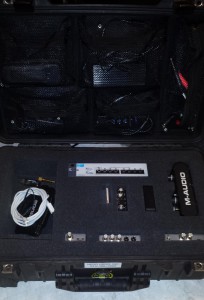
Over the past several months/years, I’ve been accumulating various pieces of gear that, when put together, give me a solid kit to take on the road for doing onsite streaming or demonstration events. It currently consists of:
I recently got some Teradek gear to try out in a church setting, and I will be posting a few blog posts about it. Other than loaning the gear, Teradek is not compensating me for this. I am, however, more than happy to sell Teradek hardware to anyone that wants to buy it from me.
One of the useful features of Wowza is its ability to record a stream to disk and then be able to use that recording for a replay. In version 3.5, it would simply take the stream name, slap an MP4 extension on the end, and version any previous ones with _0, _1, etc. In 3.6, the default naming scheme for these recordings was a timestamp, with a configuration option to use the legacy naming convention. In Version 4, it appears this legacy naming convention option has disappeared altogether, meaning you can’t set up a player to just play back “streamname.mp4” and it would always grab the most recent one. EDIT: It appears that this loss of functionality was unintentional and has been classified as a bug, which should be fixed very soon.

It’s a clean, green, mowing machine!
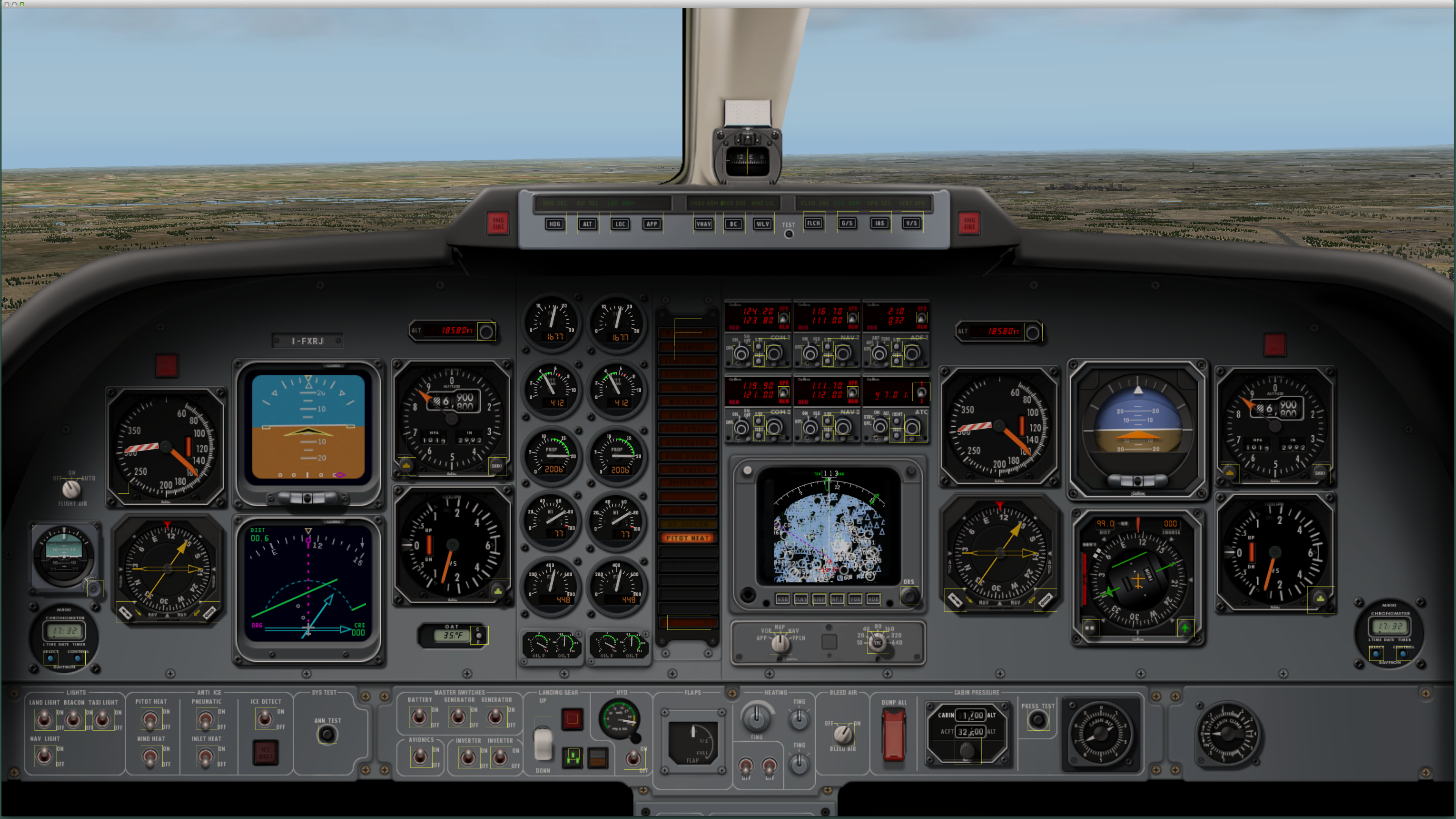
One of my desktop monitors gave it up last week, the backlight started flickering and randomly disconnecting from my Mac (which causes all attached displays to go dark for a second while it recomputes your workspace). Needless to say, it was sapping productivity even worse than Facebook. I’ve been eyeing 4K monitors for a while now, and both Dell and Lenovo have some decent low-cost options in 28” sizes ($700ish), but that was still more than I was willing to cough up for a new monitor right now, even with the Lenovo dealer demo discount.
Yet another installment in the never-ending series of dealing with different platforms. This is precipitated by the continued boneheadedness of Google when it comes to supporting any live streaming transports in the native browser (they just simply don’t). Some handset manufacturers are adding HLS support back, though.
You’ll notice there’s also code in here to reference an MPEG-DASH manifest as well as “sanjose” and “smooth” (in Wowza parlance). This script doesn’t make use of those capabilities at the moment, but once I get a good list of which browsers can support MSE and DASH.js, I’ll update it to be able to use that player.
This assumes that you’re using cloud-hosted JW Player with a key, but if you’re not, simply replace the first SCRIPT reference with your locally hosted JWPlayer file and comment out the jwplayer.key line.
If you wish to use a different player such as FlowPlayer, you can replace the appropriate code in the flashPlayer() function.
Some link juice to a support article I wrote for Wowza recently on setting up Wowza Streaming Engine on a Rackspace Cloud instance. Love their platform, really easy to use, and cost-competitive with Amazon’s EC2 cloud. Bonus: Native IPv6 support as well as Reverse DNS on both IPv4 and IPv6.
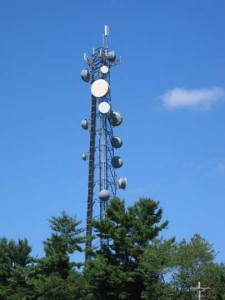
 For most users, running Wowza Media Server/Wowza Streaming Engine (which I’ll refer to as just “Wowza”) are perfectly content running it out of the box as is on a dedicated server. Where it gets a little more interesting is when you have to co-exist with other server applications that want some of the same ports (I’m lookin’ at YOU, web servers!).
As a follow-on to my previous post about getting mobile internet, here’s one about getting voice service on your US phone (at least if you have a Sprint phone).
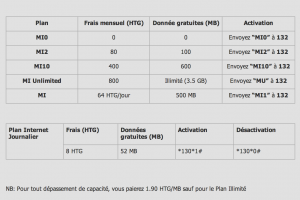
Note: Be sure to read my March 2015 update about this…
I’ve blogged extensively about Wowza RTMP distribution with edge/origin and load balancing, but streaming distribution is moving more to HTTP-based systems such as Apple’s HTTP Live Streaming (known inside Wowza as “cupertino”), Adobe’s HTTP Dynamic Streaming (Wowza: “sanjose”), and Microsoft’s Smooth Streaming (Wowza: “smooth”). Future trends suggest a move to MPEG-DASH, which is a standard based on all three proprietary methods (I’ll get into DASH in a future post as the standard coalesces - we’re talking bleeding edge here). The common element in all of them, however, is that they use HTTP as a distribution method, which makes it much easier to leverage CDNs that are geared towards non-live content on HTTP. One of these CDNs is Amazon’s CloudFront service. With edges in 41 locations around the world and 12 cents a gigabyte for transfer (pricing may vary by region), it’s a good way to get into an HTTP CDN without paying a huge amount of money or committing to a big contract with a provider like Akamai.
Not so long ago, I updated my browser-aware player code to check for the presence of a stream. Recently, it’s come to light that Internet Explorer 9 doesn’t play nice with this particular snippet, because in IE9, the Javascript engine is rather brain-damaged when it comes to cross-site requests. In order to deal with this properly, we must alter the way we query the server for the presence of a stream:
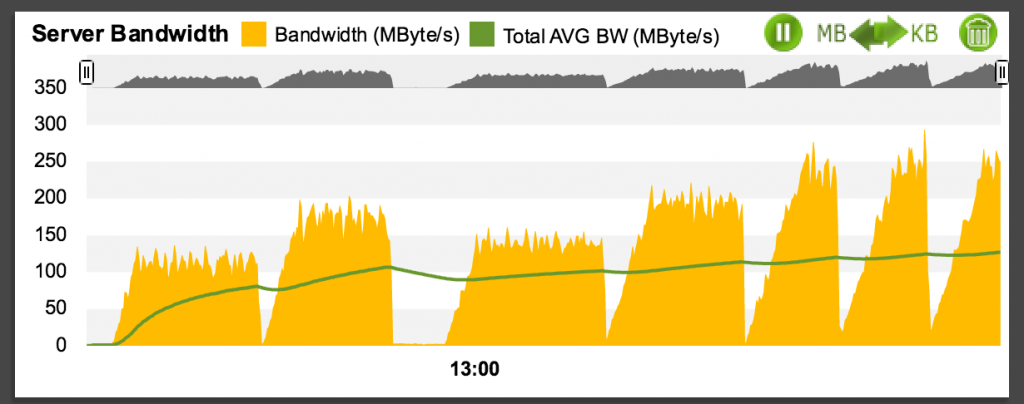
It’s been a while since Wowza has updated their EC2 performance numbers (they date back to about 2009), and both Amazon and Wowza have made great improvements to their products. Since I have access to a high-capacity system outside of Amazon’s cloud, I am able to use Wowza’s load test tool on a variety of instance sizes to see how they perform.
I’ll admit, the nerd meter on here has been running past redline for a while, so I’m going to step back and answer some questions that have come in via e-mail or twitter from those of you still trying to get started with Wowza streaming.
 I’ve posted in the past about running Wowza on large server instances. When running Wowza on systems with a 10Gbps network interface, you run into a 5Gbps limitation inherent to the Java Virtual Machine. With Wowza tuning parameters maxing out at 12 virtual cores, most machines with a 10Gbps interface will have processing power to spare, but why let all that horsepower go to waste?
For relatively little money (under $1000/month), you can get server from 100TB.com with 12 or 16 physical cores (24 or 32 virtual) and park it in the Softlayer datacenter in Washington, DC with a 10Gbps interface, pretty much in the middle of the Internet. With 100TB/month of data transfer included in the price (and for an extra charge, they’ll take the meter off entirely), this is a great option for heavy or full-time streaming. But there’s that pesky JVM throughput limitation. It’s time to take the governor off this hotrod.
What you’ll need:
I’ve posted in the past about running Wowza on large server instances. When running Wowza on systems with a 10Gbps network interface, you run into a 5Gbps limitation inherent to the Java Virtual Machine. With Wowza tuning parameters maxing out at 12 virtual cores, most machines with a 10Gbps interface will have processing power to spare, but why let all that horsepower go to waste?
For relatively little money (under $1000/month), you can get server from 100TB.com with 12 or 16 physical cores (24 or 32 virtual) and park it in the Softlayer datacenter in Washington, DC with a 10Gbps interface, pretty much in the middle of the Internet. With 100TB/month of data transfer included in the price (and for an extra charge, they’ll take the meter off entirely), this is a great option for heavy or full-time streaming. But there’s that pesky JVM throughput limitation. It’s time to take the governor off this hotrod.
What you’ll need:
- A big honkin’ server
- A big honkin’ pipe
- Some extra IP addresses (the 100TB servers at Softlayer come with 8 usable addresses)
- Wowza with either a subscription license key or two perpetual license keys
Note that I’ve done this in Linux, I’m not quite sure how it would work in Windows with registering the second instance with the services.
Step 1
- Install Wowza and tune
- Configure it with a license
- Choose an IP address on the system
- In VHost.xml, and Server.xml replace all instances of \* with the IP.
- Set up load balancing (both sender and listener) with redirect
- Add an origin application (type live).
- Add an edge application (type liverepeater-edge) pulling from the origin app
Step 2
- Make a duplicate of the following (I appended a -2):
- /usr/local/WowzaMediaServer-3.5.0
- /etc/init.d/WowzaMediaServer \*
- /usr/bin/WowzaMediaServerd \*
- Edit all references to WowzaMediaServer in the files indicated by a \*
- in the cloned installation:
- change bin/setenv.sh and bin/startup.sh to point to the cloned install
- delete conf/Server.guid
- Edit conf/VHost.xml to point to a second IP address
- Edit conf/Server.xml to point to a second IP address
- Edit conf/Server.xml to bind jmx to ports 8081/8082
- Set up load balancing as a Sender (edge) pointing to load balancer IP in primary install
- Create edge application
Step 3
- Start the primary instance
- Check http://primary.ip:1935/loadbalancer?serverInfoXML to verify the primary edge is connected
- Start the secondary instance
- Check load balancer again and make sure secondary instance is connected
- Publish a stream
- Pull a stream directly from each edge to make sure the repeaters are working
- use http://primary.ip:1935/loadbalancer to get least loaded server for load-balancing non-RTMP clients
- use rtmp://primary.ip/redirect/stream to get load balanced RTMP.
Step 4
- Sit back, relax, and enjoy the fact that you now have a server that can handle 10,000 connections.
- If you need more, build up a second server just like this one, and just make both instances edge instances
It’s the code snippet that just won’t go away. I’ve updated the code for some additional functionality. This version takes server, port, and stream parameters via the URL, parses them in javascript, and then queries a streamcheck HTTPProvider on the server to see if a stream by that name is currently published. If it is, it will load the player, otherwise load a message, and check periodically to see if the stream is published, and load the player if the state changes to true, and unload it if it changes to false, returning to the message. The player is designed to scale to fit whatever window it’s in, so make an IFRAME of whatever size you want the player, and you’re off and running
I’ve posted in the past about the various components involved in doing edge/origin setups with Wowza, as well as startup packages and Route 53 DNS magic. In this post, I’ll tie the various pieces together to put together a geographically-distributed CDN using Wowza.
Today’s nifty bit of code is a startup/shutdown script for linux that allows you to add an EC2 instance to Amazon’s Route53 DNS automatically when you start up the instance, and remove it when the instance is knocked down. This script also allows you to add the instance to a weighted round-robin group.
This makes use of the very useful Python-based bototool which is available in both Yum and Debian repositories under the package name *python-boto*.
Create this script in /etc/init.d and make it executable, and then add it to the requisite rcX.d directory for startup/shutdown.

Here in Kansas City, we’re on the very edge of the eclipse path, and it was a beautiful night for a balloon flight too. (KOJC 210053Z 34006KT 10SM CLR 22/09 A3013 RMK AO2 SLP196 T02170094). As I was out looking at the eclipse, along comes Jason Jones of Old World Balloonery with a load of passengers, and I got a balloonar eclipse as a bonus.
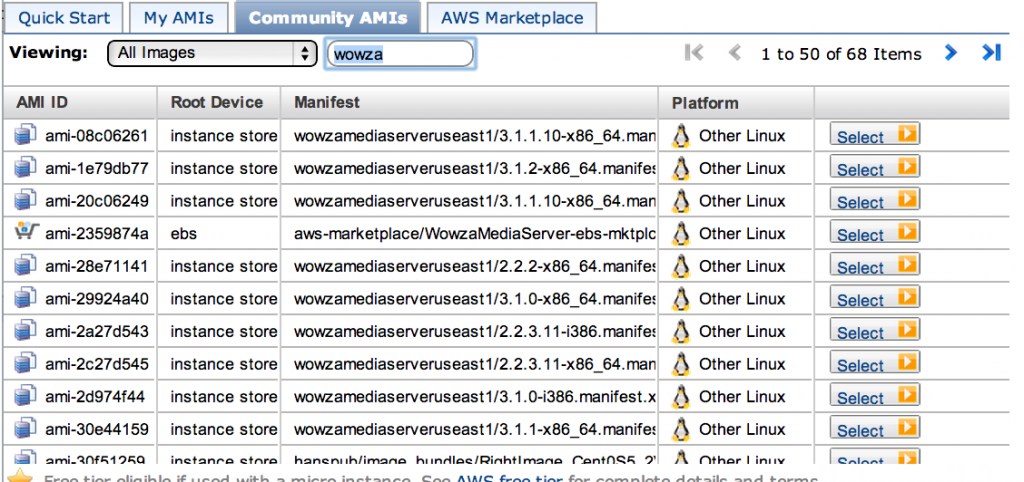
Amazon’s instance-store images are convenient, but ephemeral in nature. Once you shut them down, they’re history. If you want persistence of data, you want to use an EBS instance that can be stopped and started at will without losing your info. Here’s the process I went through to convert a Wowza image to EBS for a client to use with a reserved instance. I’m going to assume no configuration changes for Wowza Media Server, as the default startup package is fairly full-featured. This process works for any other instance-store AMI, just ignore the Wowza bits if that’s your situation.
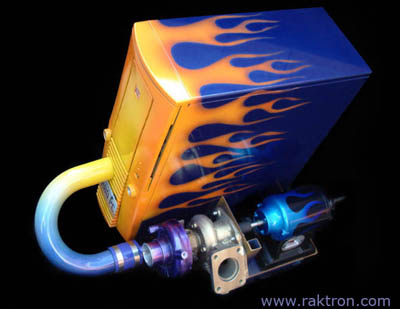
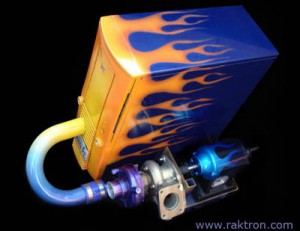 I posted recently about using Amazon EC2’s cluster compute instances for big streaming projects. That post got me a call from a client in Texas who was planning to stream a big tennis tournament in Dallas and needed a server backend that could handle it, without going through the hassle and expense of setting up a CDN account for a single event. Of course, since everything is bigger in Texas, they wanted to stream to a large audience. They also wanted to be able to send a single high-definition stream for each of the two tournament courts, and then transcode down to a few different bandwidth-friendly bitrates. This called for not only big network horsepower, but big CPU horsepower as well.
I’m currently working on setting up Wowza on an EC2 “Cluster Compute Quadruple Extra Large” instance (or as I’ve heard it called, the “super-duper-quadruple”, which sounds like something I’d get at Five Guys). There’s no pre-built AMI for this one, so you have to use a stock Linux image (I use the standard Amazon one) and install Wowza with a subscription license, and do the tuning yourself. But the payoff is this: for $1.30 an hour, you get a streaming server capable of delivering 10Gbps of data. On a 750Kbps stream, that’s over 13,000 concurrent clients. This for about the same cost as nine or ten m1.small instances which can deliver an aggregate of about 1.5Gbps. On a reserved instance, you can get this down to just under 75 cents an hour.
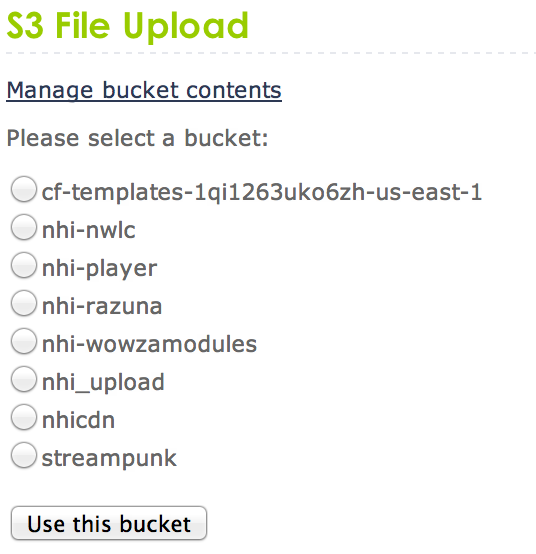
Here’s an easy way to upload directly to S3 from an HTML form. No Java, no Flash. Thanks to @RaamDev for his handy little bit of code for doing HMAC signatures. Based on the documentation from Amazon. Makes use of the AWS SDK for PHP to list the buckets.
Screen shots:
[caption id=”attachment\_1158” align=”alignnone” width=”268”] Bucket Selection[/caption]
[caption id=”attachment\_1159” align=”alignnone” width=”311”]
Bucket Selection[/caption]
[caption id=”attachment\_1159” align=”alignnone” width=”311”]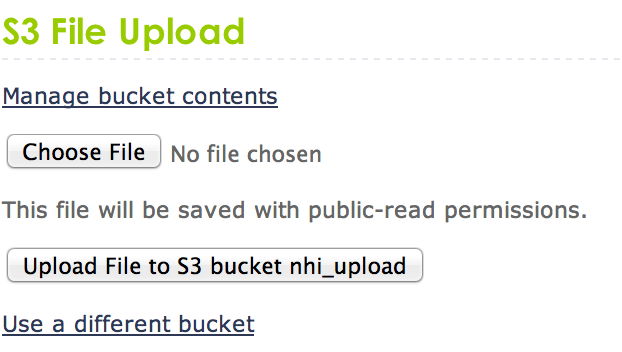 File Selection[/caption]
[caption id=”attachment\_1160” align=”alignnone” width=”317”]
File Selection[/caption]
[caption id=”attachment\_1160” align=”alignnone” width=”317”]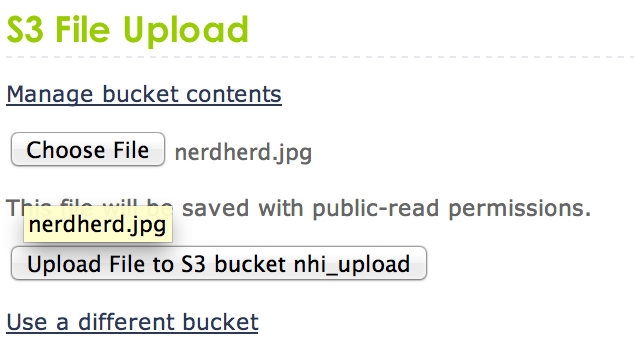 File Selected[/caption]
[caption id=”attachment\_1161” align=”alignnone” width=”452”]
File Selected[/caption]
[caption id=”attachment\_1161” align=”alignnone” width=”452”]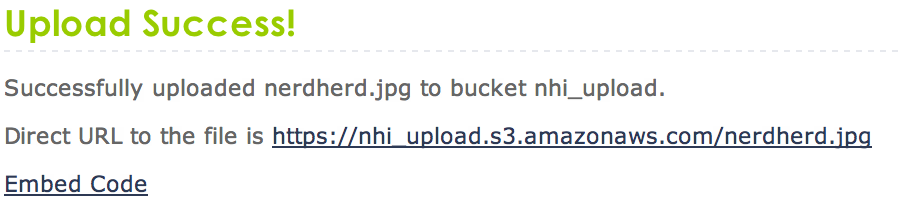 Upload Success[/caption]
code:
Upload Success[/caption]
code:
Wowza has just updated its repository of startup packages to include pacakges specific to version 3. Get them here:
Here’s the code for gathering Wowza Stats from a single server. This assumes that you’ve enabled the stats on Wowza (serverinfo, connectioncounts in VHost.xml HTTPProviders), with authentication turned off). You’ll also get better detailed stats if you use Andrew Kennedy’s CasterStats module for the serverinfo.
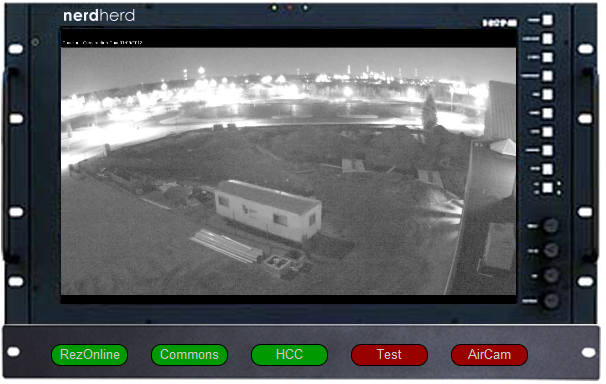
Continuing on the rack theme mentioned yesterday, I got to wondering about a stream monitor that could be switched to any of a number of live streams, without reloading the page. Fortunately, JW Player makes this easy. I threw together a player embedded inside some CSS and then added a button panel. Each button is a DIV with an onclick() action that calls jwplayer().load(). While it’s well known that you can use this to switch files simply by passing the filename to the file flashvar, we need to also pass the streamer value. Fortunately, the load() method has the ability to pass on not only files as a string value, but also objects, which are nothing more than an array of flashvars (it can also take playlist items, but that’s beyond the scope of this post). So, all you need to do in order to switch streams with JW Player is call the following JavaScript method:
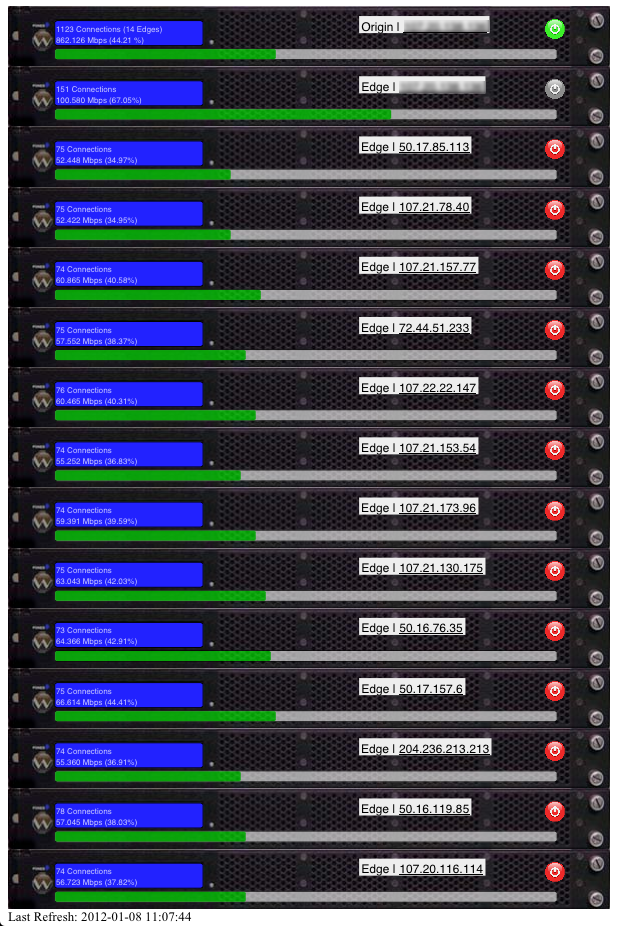
I’ve been experimenting with ways to generate load graphs for Wowza. The best way for doing bar graphs on a webpage is to go all crazy with CSS. It’s really well suited to doing this. Here’s a PHP script that will query a Wowza origin server for its repeaters, and then polls the repeaters for their load stats. This also provides buttons for launching/terminating repeaters, and visually representing them as a rack full of servers:
I’ve posted a couple of diagrams of Wowza’s architecture relating to repeaters and load balancing.
Got all the pages moved over and the images all fixed, and took care of a number of broken links. If you see any problems, let me know.
In the process of moving the site to a new hosting provider - bear with me. Still working on moving the images, they’ll start cropping up over the next few days.
Wowza V3 pre-built AMIs are now available - The devpay licensing remains, as does the pricing. The new AMI listing can be found at the Wowza V3 for EC2 page. Wowza has also added pre-built AMIs for subscription licenses, which are priced at standard instance rates. The caveat is that on devpay, the premium add-on modules won’t be available - if all you’re doing is what you were doing on V2, that won’t change anything for you.
Here’s the list of resources from this morning’s presentation on Social Media 201 at the KC chapter of #NACBA Admin Day. I’ll add stuff periodically if I run across anything particularly interesting.
Over the last few weeks, I’ve noticed that Costco is selling an 8” Android tablet from Vizio (Model VTAB1008) for the very attractive price of $234.99. Unfortunately, their merchandising is somewhat lacking as this is a Wi-Fi only tablet, and there’s no Wi-Fi to speak of at Costco (and, as it turns out, the demo mode on them won’t allow Wi-Fi anyway!). I remembered today that Costco has a very generous 90-day return policy, which should give me ample opportunity to put one of these units through its paces, and picked one up.
In my previous post, I mentioned that Wowza’s licensing is changing for EC2-based instances. Naturally, this is going to have an effect on how much it costs. I’m going to break down the numbers for a typical church scenario.
** UPDATED INFORMATION : 6 November 2011 **
Here’s a quick and dirty way to grab a thumbnail from a Wowza application:
This weekend is Labor Day in the US, which typically signals the end of “cultural summer” (as opposed to astronomical or climatological summers, which still have several weeks left around here). It’s also the end of one season of my life and the beginning of another.
I posted a while back about selecting video players based on browsers… It was an ugly javascript hack, and since then LongTail has updated their excellent JWPlayer to support multiple methods. In order to create an embed that worked best for supporting both HTML5 and Flash players, I had to dig through the documentation a little bit, and combine a couple of different sections.
Here’s how to embed JWPlayer 5.7 to try flash first, with multiple bitrates, and then attempt HTML5 if Flash is not supported. This particular scenario is for iOS support.
I posted a few weeks ago about bringing a WSUS machine down to Haiti as a sort of proxy - unfortunately, this project turned out to be a bust.
I’m the official team blogger for our Haiti trip (go figure). Go see the Daily trip updates. Those will be more general. Technical updates will, of course, be here.
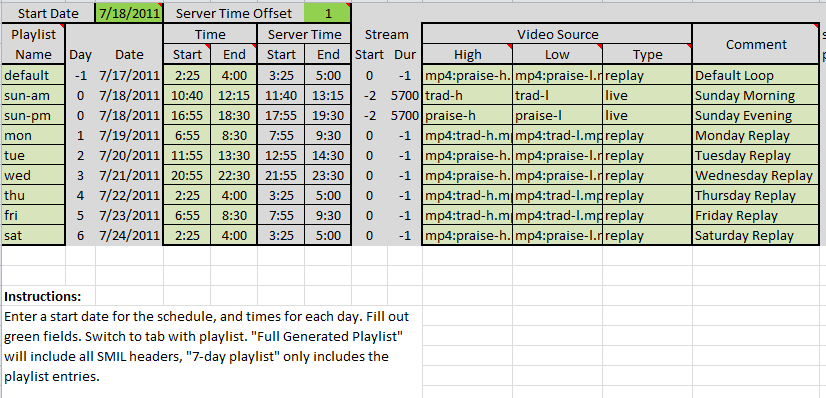
I’ve received a few comments and e-mails to my post about the Wowza Stream Class asking if I had any kind of playlist generator. I have something in Excel that I use for our weekly live stream and scheduled rebroadcasts. It may require heavy modification to suit your purposes, but it’s helpful to really see how a playlist can come together.
When I leave for my trip to Haiti in a few weeks, one of the things I’ll be doing is bringing multiple computers up to current patches. There are a few ways to do that:
Quick and dirty apt-get string to install all the requisite perl modules (and associated dependencies) for ASSP on Debian:

 It’s official - Veeam is announcing this morning that version 6 of their award-winning backup/replication software will support Microsoft’s Hyper-V virtualization hypervisor. The new version is due out later this year.
I updated my 2008 post on Arena Check-In Stations to add some information regarding the current technology refresh.
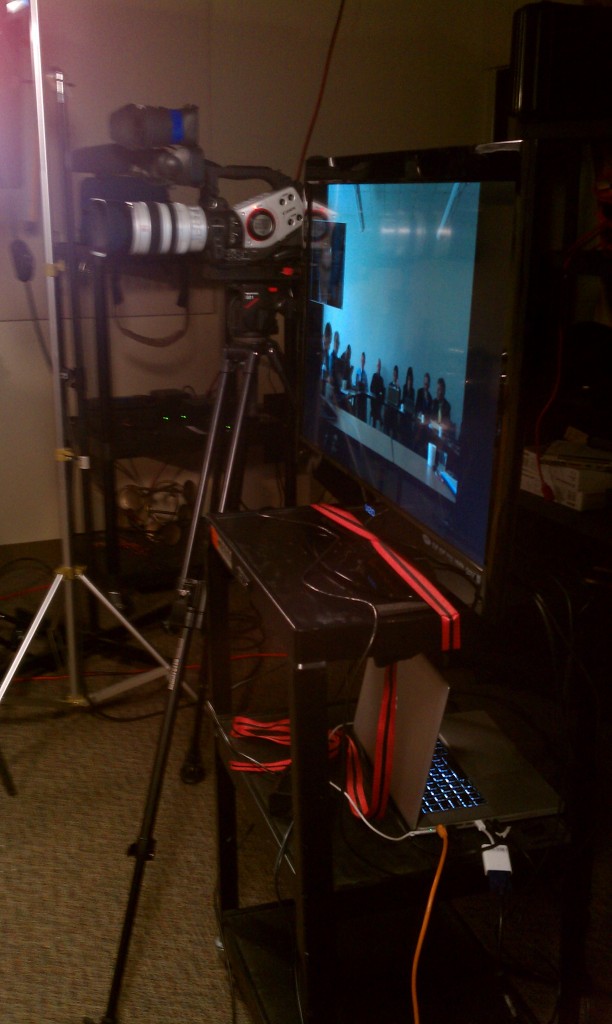
A few weeks ago, our Senior Pastor asked for some assistance with setting up a skype video conference so that Adam could participate in a meeting being held in Texas. The alternative was to have him fly down to Dallas for a 1-hour meeting, effectively blowing out an entire day of productive hours.
Just discovered an interesting little tidbit about using DNS from within Amazon’s EC2:
 Startup packages are one of the more useful features of Wowza Media Server for EC2 - they allow you to custom-configure a system for rapid scaling and provisioning. Wowza provides several starter packages to build on.
A startup package is a file (up to 16384 bytes in size) that’s passed to the instance through the **–user-data-file** parameter on the API tools (if you’re uploading it via the AWS Web Console, you’ll need to encode it to Base64 and paste it into the text box) . There are a few ways that the data can get into the instance, which Amazon documents over here. For a generic EC2 instance, this can be anything, from text to binary data, depending on what the processing on the target instance is set up to do. In the case of Wowza, it’s a zip file with a specific structure. Much of this is digested from the Wowza for EC2 guide.
Startup packages are one of the more useful features of Wowza Media Server for EC2 - they allow you to custom-configure a system for rapid scaling and provisioning. Wowza provides several starter packages to build on.
A startup package is a file (up to 16384 bytes in size) that’s passed to the instance through the **–user-data-file** parameter on the API tools (if you’re uploading it via the AWS Web Console, you’ll need to encode it to Base64 and paste it into the text box) . There are a few ways that the data can get into the instance, which Amazon documents over here. For a generic EC2 instance, this can be anything, from text to binary data, depending on what the processing on the target instance is set up to do. In the case of Wowza, it’s a zip file with a specific structure. Much of this is digested from the Wowza for EC2 guide.
File Contents
A startup package for EC2 contains the following:
- startup.xml (startup manifest)
- tuning folder
- wowza folder
- Any other folders referenced in the startup manifest
A startup package is limited to a maximum of 16KB.
Startup activities are logged to **/usr/local/WowzaMediaServer/logs/wowzamediaserver\_startup.log**. This is a good place to look if it’s not behaving as expected. The package is unpacked to **/opt/working**.
Startup Manifest
This file controls the startup processing for instantiating a Wowza server on Amazon EC2. It allows three commands: Install, Download, and RunScript.
Download
The command will download content from a web server and save it to the local Amazon instance. The command includes the following elements: URL, Data, Header, Destination, and Action:
Updated the Wowza Launch Script. Changed it to be more friendly to a non-root user directory, as well as adding logic that makes the startup package on the fly, so that if you want to edit the contents, the next launch will send the current incarnation.
Updated the code for the Wowza statistics collector. Command-line options, parsing stream names, a little cleanup.
I mentioned in the previous post about using ffmpeg in a cron job to create Simulated Live events via Wowza. In this post, I’ll explain how to do it using the Wowza Stream Class module, which allows you to set a broadcast schedule to play a mix of recorded and live content.
Wowza has a pretty good document on how to add this module in to your server and do a test playlist.If you’re setting this up on Amazon EC2, you’ll need to update your startup package by putting the module in the wowza/lib directory and the playlist in the wowza/content directory
Unfortunately, the tutorial doesn’t really cover playlist creation beyond the example. This is especially tricky, given that the scheduling parameters don’t seem to conform to any known SMIL standard. Yes, it’s XML, so theoretically, it doesn’t matter, but there are extensions in SMIL 3.0 that are meant to deal with server-side playlists for automating programming.
Unless you specified a different application name in the Properties section of Server.xml, the automated playlist will publish to the *live* application.
The basic structure of the SMIL file body consists of and statements.
Stream Element
The element defines one or more virtual stream names that the playlists will feed into:
Last summer, we switched our primary Flash streaming over to 316 Networks partly because of the simulated live capability they offered, and partly for the Media Suite backend. We continued to use Wowza on EC2 for our mobile users, since the solution works very well. Unfortunately, simulated doesn’t work for our mobile users, who are limited to live.
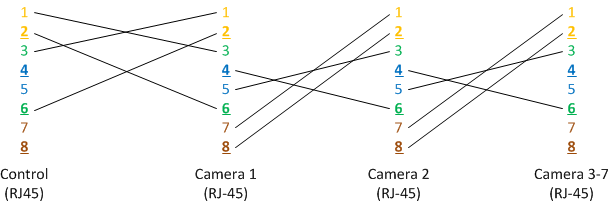
Update - January 2014:Wow, 3 years later this is still one of the most popular posts on this blog! I’ve had some questions about using this with the EVI-HD1, which has only RS-232 DIN ports. Theoretically, it should work, but you might need to alter some pinouts in the breakout box, and I would highly recommend using shielded/grounded cable, as RS-232 is an unbalanced signal. A reader is going to give it a try, and if it’s successful, I’ll update the post with some pictures.
 I’ve posted before about LED lighting, and consider myself an early adopter.
Nope. Not talking about your XBox or Playstation or even your Wii.
 Another school year is upon us, and that means that children are once again subjected to the abuse that is the federally-guided school lunch program.
There’s an up-and-coming local business (who shall remain nameless) that hired someone to handle their social media presence. Unfortunately, it seems they hired someone who is a marketer first, and who happens to know that social media tools are out there, but doesn’t have a clue how to use them appropriately.
Today, they posted a special on facebook: “Come by before we close, and will give you “. Since their is mind-blowingly good, I stopped by on the way home from work. The owner himself was a little baffled, and didn’t even know what the special was. He had to call his “social media person” (who didn’t answer the phone), and then resort to looking it up on Facebook. He tried to explain that their new social media person was “going a little crazy”.
Previously, they’d had a twitter special that involved DMing them a certain phrase when you got there, and they would DM you back a coupon code worth 10%. When I tried that, it took 5 days for me to get my coupon code. I’ve frequently received random DMs from them that indicate to me that something is amiss with their twitter auto-responder. Comments to their twitter account pointing this out went ignored. I’ve never had this business respond to anything I’ve posted to Twitter or Facebook about them.
The person handling their social marketing has neglected the crucial element of social media: the SOCIAL aspect. I get wanting to outsource it. But a good social media practitioner absolutely HAS to keep the business owner in the loop. The key aspect of social media is that it’s a **conversation** with your customers, not a one way communications blast. The owners/staff should know what’s being put out there with their name on it. They should be aware of the people that are conversing with them, who they are, and ideally, when they show up at the business.
This week, I’ve been assisting our mission team in Haiti with networking upgrades for the Guest House. I really wanted to go on this trip, but there’s way too much going on back at Resurrection. So I get to do my part through the magic of the Internet.
Digital distribution is the future of media. Physical media is dead. Yeah, I know, you’ve heard it but don’t believe it.
It was nine years ago.

 I don’t often blog about sports. Sports writing is not my thing. There are others way better at it than I. But I’ve had a passion for the game of baseball since I was little and my dad took me to a couple of Expos games every summer (which, looking back, prepared me quite nicely for the perpetual disappointment that comes with being a Royals fan these days)
One of the big challenges of streaming to the web is the sheer diversity of devices out there.
This past week, I pushed out some modifications to the player code on our live page that switches the player code based on what the user is connecting with. The genesis of this change was a problem with our change to JW Player Version 5 causing our PlayStation users to no longer be able to watch our video since JW v5 requires Flash 10 and Sony apparently doesn’t care about its customers. After a successful test with the Playstation, I extended the code to provide an HTML5 tag for our iPhone users (allowing us to clear up some the clutter on the sidebar), as well as MMS and RTSP links around a graphic mimicking the Flash-based player in order to provide a consistent user experience for our Android/WebOS/BlackBerry/WinMo users.
EDIT: The main reason I’m not doing straight HTML5 with Flash fallback (a much more elegant solution) is that we’re sending out VP6 for our flash users and a lower-bandwidth h.264 stream for our mobile users. We’re not currently using h.264 for our flash users because of the poor quality of the h.264 encoder in Flash Media Live Encoder. Once we get a “real encoder”, we’ll send out a single set of h.264 streams and use HTML5 with fallback.
The code is here.
With HP’s announcement today that they are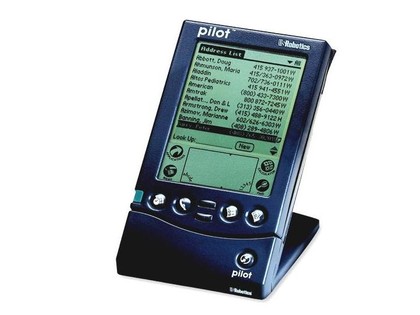 purchasing Palm, the loop is complete:
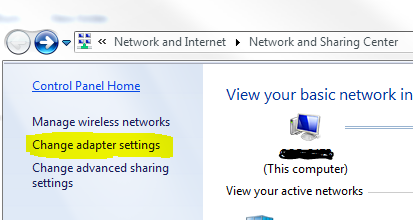
A long time ago, I made a post about fixing network priority in Windows, and I found myself having to do the same task again on my new Windows 7 system. The process isn’t quite as easy to find under Windows 7/Vista. Here’s the updated version:
The biggest electrical energy drain in your home is usually lights. It goes without saying that if you can address that area, you’ll be a whole lot happier when the electric bill comes.
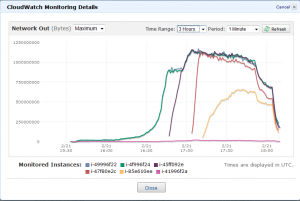
(or, How Amazon Cloudwatch helps manage Wowza server load)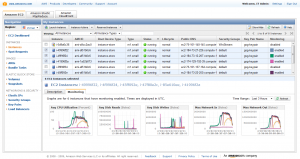
 This just in from my Dell rep, and confirmed by several in the CITRT Twitterverse: VMWare has opened up their academic pricing to non-profits. Jason Powell has the pricing information at his blog. The relevant bits from VMWare:
Grrr!, Hardware
Best Buy, Consumer, Costco, Customer Disservice, dell, Depot, Geek Squad, Laptop, Repair, Toshiba
[caption id=”” align=”alignright” width=”300” caption=”Photo: bdtyre”]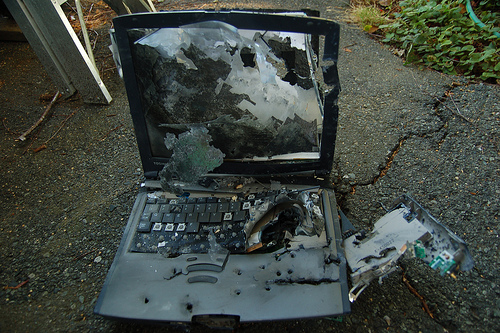 [/caption]
streaming
AAC, android, BlackBerry, H.264, HTC Hero, iPhone, Media, MMS, mobile, PalmOS, Pre, RTSP, streaming, windows mobile
Now that we’ve gotten streaming to computers down pat, I’ve set my sights on delivering a good experience for mobile users. Unfortunately, with the wide variety of mobile platforms out there, this is not an especially easy task. The Mac/PC/Linux issues are complicated enough, and it gets really tricky when the platform ecosystem has half a dozen major players (and a truckload of minor ones)
Longtail recently released JW Player 5.0, but it had a bug that prevented it from being used with a Wowza load balance setup. It would catch the redirect and show the first few frames and then start buffering without end.
On our live stream page, we have a nifty little javascript counter that lets you know when the next service is.
Earlier this week, I got an e-mail from Amazon Web Services, with some new goodies being announced.
For the last couple of years, we’ve used LED Christmas lights in our sanctuary. Considering how many we have (hundreds), the electricity savings are probably non-trivial.
Since there’s been a flurry of interest lately on my series of posts on live church streaming, here’s an index to the entire set of posts:
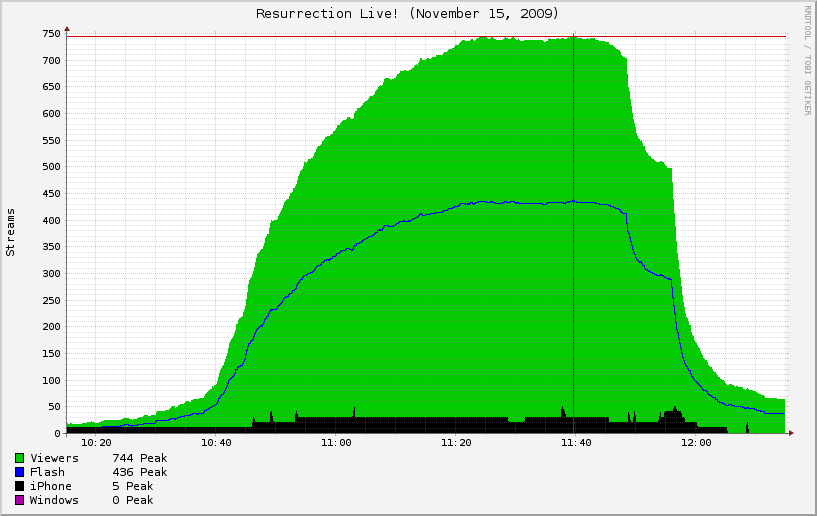
Back in July, I made a post about metrics and a cheesy VB Script that got the job done, but wasn’t particularly elegant. I’ve since improved on this due to load balancing (I posted about that in September).

I ran up to Musician’s Friend this afternoon with C so that my wife could have some peace and quiet to work on seminary and candidacy stuff, and picked up a Behringer BCF2000. It’s so very handy to have the MF outlet locally (their distribution warehouse is up near Liberty, MO), and it’s unfortunate that they’re closing the outlet center at the end of the year.
I got the OK from Clif to get the VT5 MIDI interface from Dhomas, and a control surface. The first one to try, simply by virtue of its ready availability at the local Guitar Center was the Korg NanoKONTROL.
This post is mostly for my own reference, but putting it out there for anyone else looking for MIDI control surfaces that can be used with VT5 by way of dhomas’ MIDI-VT software. Much discussion on the NewTek forums here. Primary objective is physical control (as opposed to on-screen) of the VT5’s internal audio mixer, with secondary objectives being able to easily control some remote camera parameters like iris/gain/shutter/focus as well as DDR and capture transport controls.
This week, I discovered that the new version (4.5) of JW Player now supports the Wowza RTMP redirect method of load balancing. Huge props to Richard Lanham for making that possible. Richard is a tremendous asset to the Wowza community.
Time Warner’s internet service has been flaky at best at my house lately, despite swapping out the modem. So I figured I’d see if AT&T would give me data-only u-verse. They will, and when I started asking about additional fees, the conversation took a sharp weird turn.
Yesterday was the first live test of our EC2 automation, and it worked beautifully. One thing I discovered was that when the Wowza servers shut down, Flash Media Encoder simply attempts to reconnect to the server until it succeeds. This is very helpful, since I can just leave the VT5 system on a loop or on the program feed, and as soon as the servers are ready, they’ll start broadcasting.
It’s all well and good that we’re putting this stream out there… But if we’re not reaching anyone, it’s kind of a big waste of money and time. How do we go about finding out how many people we’re reaching?
Here’s a bunch of useful links accumulated recently during the course of my research. They’re here as much for my own recall as they are for your benefit.
I mentioned a few posts back that I was looking for a way to automate startup and shutdown of the servers. Thanks to some great sleuthing by Justin Moore at Granger Community Church, I got some scripts to start from. I had to make some modifications to suit our exact purposes, but that was relatively easy.
We started streaming to iPhones today. Huge success, way easier than it ought to be, now that the iPhone does HTTP streaming and Wowza’s V2 software supports everything needed to stream to the FruitFone. All we had to do was shell out $250 to MainConcept for their AAC encoder plugin for Flash Media Live Encoder. (Although we subsequently discovered that there is a bug with the MainConcept encoder that cause audio sync problems on iPhone, so we’ve moved iPhone encoding off to a separate machine)
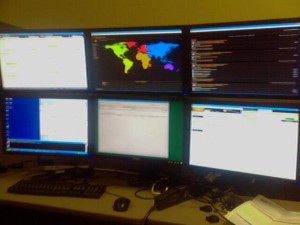
For background information, see Part 1 and Part 2
If you missed it, go back to Part 1 to see how we got here.
When our senior pastor started casting his vision of an Internet Campus which would revolve around a live (or nearly-live) stream of worship, it became pretty apparent that this was not going to scale well or cheaply. Over the course of the summer of 2008, we started exploring creative ways to do the impossible with nearly no money.
Cool Tools:
I’m looking to put together a live map for seeing where people are coming from on our live stream. One format of this map would be a full-screen display at the ops console, the other would be a small map on the website itself. If you’re using this kind of technology, Id love to know how you are doing it, whether it’s with a monthly service, or you rolled your own code.What I’ve looked at so far:
…to bring you this important public service announcement regarding child car seat safety.
Web video is clearly here to stay. Heck, I currently have 40% of my time dedicated to producing and delivering web video of our weekend worship services. I think this is tremendously cool stuff, and traditional one-way RF-based video delivery (a.k.a. TV) is pretty lame. My kids have no concept of a broadcast schedule. Their content world is one that is immersive, interactive, and on-demand.
It’s been a while since I did any serious banging on our FX160 seed unit from Dell - mostly because I’ve had a lot of other things on my plate with considerably higher priority.
Now that I’ve had a chance to play with the FX160 a little more, here are a few things I’ve discovered:
(Edited at 4:45pm to add some additional information about power supplies)
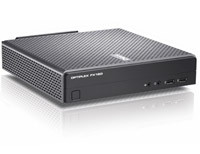 Today, I got the FX160 demo unit from Dell that I’ve been salivating over for several weeks now. We’re looking at buying a number of XPe thin clients next year, and, while I like the HP thin clients, HP support alone is worth making the jump to Dell. Despite being pretty sure that this was our next thin-client platform, I still wanted to try one out, and our Dell rep was able to get approval for a seed unit to help solidify the decision to buy the Dells. These hit the market at the beginning of December, and they fit in a number of niches in Dell’s desktop product offering. Our particular niche is light-duty computing and kiosks.
Here are my first impressions of the unit. I haven’t had a chance to do extensive testing yet, but I’ll be sure to let you know.
The Unboxing: Like most Dell packaging, the box is nothing special like it is from Apple. Dell shipped the unit with one the optional desk mount bracket. This is a good-looking unit, and the first thing you notice when you look at the connections is the dual displays (one VGA, one DVI), followed quickly by the IEC power connector, telling me this thing doesn’t have a line lump power supply like my HP thin clients. (It should be noted here that the HP 12V power supply has the exact same mechanical interface as the 20V power supply for a Zebra label printer. When you hook up the wrong one, magic smoke comes out and the unit has to be sent to HP, taking it out of service for 2 weeks). Also visible is the spot for the antenna for the optional built-in wireless (which this one didn’t have - I wonder how easy it is to retrofit? it’s mini-PCI)
Dell also was nice enough to send me a 22” UltraSharp display (which Clif called dibs on). Mysteriously, though, it shipped without a stand. I stole one from one of the 19” displays on my desk and hooked it all up, casting a 5720 used for Arena Check-in development onto a nearby shelf.
I hit the power button and the smooth face starts blinking. Ooo, blue LEDs. Nice touch. They turn orange if something is amiss, though, just like you’d expect them to on a Dell. The usual set of Dell 1/2/3/4 diagnostic LEDs is present, as is the network link indicator for the gigabit ethernet port.
The system boots up to a user desktop that blessedly allows me to right-click and change the display settings. I adjust to match the big shiny monitor and fire up a browser and cruise over to Hulu, where I am pleased to discover that the stock load on this beast includes a recent version of Flash. Sadly, this thing just doesn’t have the horsepower to run the Simpsons in full-screen, and definitely not the HD version of The Office. After trying its performance on video (it does just fine on lower-bandwidth stuff, but if you buy one of these hoping for good graphics performance, you’ll probably be disappointed).
I decide to log out of the user account and go poke around under the admin account so I can see more of what’s under the hood. I do the usual holding down of the shift key while I log out, so that it doesn’t auto login back under the user account (configured as “User1”).
This is where I run into problems. Dell hasn’t documented the default password anywhere with the system, so I head over to Google, which doesn’t help me much either. HP was at least up-front about its default passwords. Dell, this is highly annoying. Please correct this. I’m cutting you some slack because this is a new product for you guys.
So, the thing’s been out of the box for less than an hour, and It’s already generated a support call. Fortunately, Dell’s support on these is up to their usual standard, and I’m able to get a hold of someone at ProSupport on their support chat system.
HP, are you paying attention here? This alone is enough to make me buy these. This beats the socks off of your process of having to slog through your pathetic IVR system that doesn’t know what “Thin Client” means, picking a random support group, and then having them tell me in a thick Indian accent, “let me transfer you to the correct support group,” followed by at least one (and frequently more) heavily-accented techs who can’t figure out the process of getting me Altiris support without me explaining it in detail. Especially since your chat system doesn’t know what a thin client is either, and when I tell it it’s a desktop system, it tells me the serial number is invalid.
Another huge advantage of the Dell unit and the associated support is that if the system board is relieved of its magic smoke (much harder to do than the HP), I’ll get a part in my hands the following day, rather than paying to ship it in for depot repair and waiting a few weeks to get it back in service.
The Dell tech on the chat finally gave me the default passwords, after insisting on verifying ownership of the unit (??? I just want the default password, not the keys to NORAD). For those who don’t want to go through the trouble of contacting support to gain access to the box they just purchased, the administrator password is the ever-so-creative “dell” (all lowercase) and the User1 password is equally original: “password”. Apparently there’s also an “Admin1” account that also uses “dell”. I ask about the monitor, telling him it doesn’t have a leg to stand on. I’m told it was ordered without one. Huh???? Gonna have to get on my rep about that.
On gaining administrative access, I see that this unit shipped with the single-core Atom 230, as well as 1GB each of RAM and flash (which Dell calls NVRAM). The performance tab on the Task Manager tells me this proc is hyperthreaded and presents it as 2 cores to the OS (confirmed by Intel - this proc also supports EM64T).
The XPe-based FX160 comes with the same Altiris-based remote management that the HP thins do, but I did notice that, while it detected my existing Altiris install, it didn’t connect to it due to a licensing issue. I hope I can simply add the Dell licenses to my existing Altiris install rather than do a whole separate one. I suspect this is going to generate a call to support as well, so we’ll see how that process compares to getting Altiris support from HP. My guess is it will be a whole lot less painful, simply because it would be extremely difficult to make the process worse than HP has)
That’s about as far as I got yesterday, and I’m taking today off. I’ll report back in soon on what the factory load contains, and how well it does with some of our applications. Hopefully, Clif won’t have stolen the monitor by then.
I think Dell’s got a winner here, barring some unforeseen discovery of a major showstopper problem with the OS load. The FX160 comes with a wide enough range of options to fit a lot of business needs (the dual-core unit with a hard drive could be a good low-end desktop). The @DellServerGeeks have also been helpful and tweeted a few links about desktop streaming and the FX160.
Stay tuned. I suspect we’re going to be buying some over the course of the coming year.
Today, I got the FX160 demo unit from Dell that I’ve been salivating over for several weeks now. We’re looking at buying a number of XPe thin clients next year, and, while I like the HP thin clients, HP support alone is worth making the jump to Dell. Despite being pretty sure that this was our next thin-client platform, I still wanted to try one out, and our Dell rep was able to get approval for a seed unit to help solidify the decision to buy the Dells. These hit the market at the beginning of December, and they fit in a number of niches in Dell’s desktop product offering. Our particular niche is light-duty computing and kiosks.
Here are my first impressions of the unit. I haven’t had a chance to do extensive testing yet, but I’ll be sure to let you know.
The Unboxing: Like most Dell packaging, the box is nothing special like it is from Apple. Dell shipped the unit with one the optional desk mount bracket. This is a good-looking unit, and the first thing you notice when you look at the connections is the dual displays (one VGA, one DVI), followed quickly by the IEC power connector, telling me this thing doesn’t have a line lump power supply like my HP thin clients. (It should be noted here that the HP 12V power supply has the exact same mechanical interface as the 20V power supply for a Zebra label printer. When you hook up the wrong one, magic smoke comes out and the unit has to be sent to HP, taking it out of service for 2 weeks). Also visible is the spot for the antenna for the optional built-in wireless (which this one didn’t have - I wonder how easy it is to retrofit? it’s mini-PCI)
Dell also was nice enough to send me a 22” UltraSharp display (which Clif called dibs on). Mysteriously, though, it shipped without a stand. I stole one from one of the 19” displays on my desk and hooked it all up, casting a 5720 used for Arena Check-in development onto a nearby shelf.
I hit the power button and the smooth face starts blinking. Ooo, blue LEDs. Nice touch. They turn orange if something is amiss, though, just like you’d expect them to on a Dell. The usual set of Dell 1/2/3/4 diagnostic LEDs is present, as is the network link indicator for the gigabit ethernet port.
The system boots up to a user desktop that blessedly allows me to right-click and change the display settings. I adjust to match the big shiny monitor and fire up a browser and cruise over to Hulu, where I am pleased to discover that the stock load on this beast includes a recent version of Flash. Sadly, this thing just doesn’t have the horsepower to run the Simpsons in full-screen, and definitely not the HD version of The Office. After trying its performance on video (it does just fine on lower-bandwidth stuff, but if you buy one of these hoping for good graphics performance, you’ll probably be disappointed).
I decide to log out of the user account and go poke around under the admin account so I can see more of what’s under the hood. I do the usual holding down of the shift key while I log out, so that it doesn’t auto login back under the user account (configured as “User1”).
This is where I run into problems. Dell hasn’t documented the default password anywhere with the system, so I head over to Google, which doesn’t help me much either. HP was at least up-front about its default passwords. Dell, this is highly annoying. Please correct this. I’m cutting you some slack because this is a new product for you guys.
So, the thing’s been out of the box for less than an hour, and It’s already generated a support call. Fortunately, Dell’s support on these is up to their usual standard, and I’m able to get a hold of someone at ProSupport on their support chat system.
HP, are you paying attention here? This alone is enough to make me buy these. This beats the socks off of your process of having to slog through your pathetic IVR system that doesn’t know what “Thin Client” means, picking a random support group, and then having them tell me in a thick Indian accent, “let me transfer you to the correct support group,” followed by at least one (and frequently more) heavily-accented techs who can’t figure out the process of getting me Altiris support without me explaining it in detail. Especially since your chat system doesn’t know what a thin client is either, and when I tell it it’s a desktop system, it tells me the serial number is invalid.
Another huge advantage of the Dell unit and the associated support is that if the system board is relieved of its magic smoke (much harder to do than the HP), I’ll get a part in my hands the following day, rather than paying to ship it in for depot repair and waiting a few weeks to get it back in service.
The Dell tech on the chat finally gave me the default passwords, after insisting on verifying ownership of the unit (??? I just want the default password, not the keys to NORAD). For those who don’t want to go through the trouble of contacting support to gain access to the box they just purchased, the administrator password is the ever-so-creative “dell” (all lowercase) and the User1 password is equally original: “password”. Apparently there’s also an “Admin1” account that also uses “dell”. I ask about the monitor, telling him it doesn’t have a leg to stand on. I’m told it was ordered without one. Huh???? Gonna have to get on my rep about that.
On gaining administrative access, I see that this unit shipped with the single-core Atom 230, as well as 1GB each of RAM and flash (which Dell calls NVRAM). The performance tab on the Task Manager tells me this proc is hyperthreaded and presents it as 2 cores to the OS (confirmed by Intel - this proc also supports EM64T).
The XPe-based FX160 comes with the same Altiris-based remote management that the HP thins do, but I did notice that, while it detected my existing Altiris install, it didn’t connect to it due to a licensing issue. I hope I can simply add the Dell licenses to my existing Altiris install rather than do a whole separate one. I suspect this is going to generate a call to support as well, so we’ll see how that process compares to getting Altiris support from HP. My guess is it will be a whole lot less painful, simply because it would be extremely difficult to make the process worse than HP has)
That’s about as far as I got yesterday, and I’m taking today off. I’ll report back in soon on what the factory load contains, and how well it does with some of our applications. Hopefully, Clif won’t have stolen the monitor by then.
I think Dell’s got a winner here, barring some unforeseen discovery of a major showstopper problem with the OS load. The FX160 comes with a wide enough range of options to fit a lot of business needs (the dual-core unit with a hard drive could be a good low-end desktop). The @DellServerGeeks have also been helpful and tweeted a few links about desktop streaming and the FX160.
Stay tuned. I suspect we’re going to be buying some over the course of the coming year.
This is from a blog post from a french infantry unit stationed with a US unit in Afghanistan. I’ve translated it for the benefit of those who don’t speak French (and as an exercise for my own language skills - it’s been a while!)

While I’m on the topic of Slashdotting, I had a conversation with Clif the other day about what it takes to scale up sites to handle the onslaught of traffic generated by people looking for web coverage of Election Night. It’s one of those nasty scalability problems where if you get it wrong, you’re utterly screwed and don’t get a do-over or a few hours to fix it. If you’re in the business of selling eyeballs and your site goes dark during the Big Game, you’re pretty much hosed. And broke.
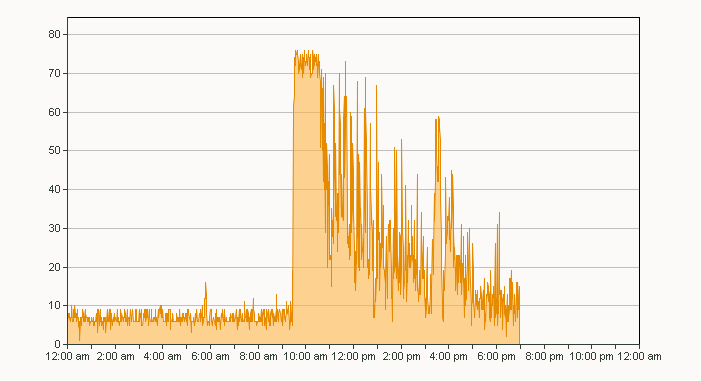
Well, OK, it wasn’t Slashdot that was the culprit this time, but rather the pro blog Consumerist (if we’re a megachurch, does Consumerist count as a megablog? It claims nearly 3 million unique visitors a month)
She just built a large structure out of Lego, and it has a bell.
Given Kansas City’s central location on the IP backbones that traverse the US, it should be a heck of a lot easier than it is to get some semblance of decent bandwidth at the church (and other locations). Sadly, the best we can do is 1.5Mbit DSL (even if the line has been tested from our demarc to support 7.5Mbit, AT&T refuses to sell us any more than 1.5Mbit because their computers say that’s the best they can do) or bonded T1s.Even then, there’s a finite limit to what what we can achieve with that, because we have a finite amount of copper feeding the building.
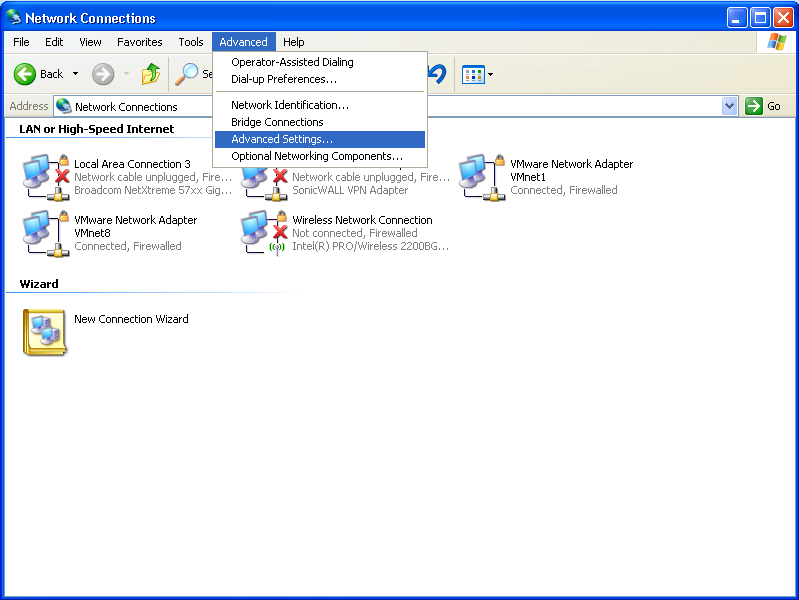
Recently, we made some changes to the DNS infrastructure on our public wireless networks which has had the unintended consequence of breaking things when our laptop users are plugged into the LAN and have their wireless active. Brian and I have wrangled with this in the office, but we simply turned off the wireless as a workaround.
The last few days have been rather stressful.. Our shiny new web infrastructure at COR has been throwing major temper tantrums, which means I’ve been rather busy of late. Today, it melted down half a dozen times after I thought I’d fixed it. Each time it did something different. (and if that wasn’t enough excitement, our upstream provider had a BGP issue this morning that knocked their entire customer base off the web for about 5 minutes)

Now that a lot of the back end of our Arena Check-in system is in place and ready to go, I’ve been focusing my efforts on the fun part… Themes!
Jason Wilson pointed me to some new pages at MainStreet.net today, wherein yours truly features rather prominently, along with Jason Powell and Mark Rock (and a few others) with the ParrotCam at MinistryTech from last April. There is also a picture of Justin.
This past weekend had the family taking a quick trip out to Connecticut to visit my grandmother for her 90th birthday party, a surprise celebration my dad and aunts have benn putting together for a couple of years now.

My eldest, Faith (who will be *gasp* FIVE next month) showed from a very early age (6 months?) that she was probably going to be one of these extreme-sports adrenaline junkies.
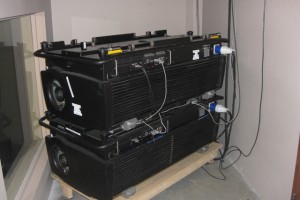
I had a great chat this morning with Gregg Hatton-Fearnley, the IS/IT director at Centre Street Church here in Calgary.
I’ve been on vacation up in the great frozen cool north, in Calgary to visit my mom. My brother cashed in some of his frequent flier points to come visit as well. The story so far:
Shatto Milk was having an open house today at their farm up in Osborn, MO, and we thought it would be a fun thing to do with the girls. While Andrea was up at Troost Elementary for COR’s Bless The School missions project, I took the kids up to the farm.
Take a look at this data coverage map from Sprint. Orange is EV-DO, Yellow is 1xRTT:
I thought it rather ironic that as I was installing my HA firewall cluster that I hadn’t planned the whole hardware redundancy thing all the way through.
I now have a profound appreciation for BSD.
Had a wonderful 35th birthday today, thanks to my family and a bunch of friends, mostly from the department, with a few others thrown in for good measure.
The Content Consumer has a great post about testing Ubuntu’s latest release. He Installed a standard desktop system and stuck his girlfriend in front of it. The results were interesting, and a testament to why programmers and engineers shouldn’t try to design UIs.
Chris Green has a great post titled “Saying “No Macs” is no longer an option for *Church* IT”. Some definite food for thought that’s got me thinking about ProPresenter on iMacs vs. MediaShout on Dell 745s for our worship spaces.
Yesterday I went down and picked up some some servers and workstations that were donated to us. This company runs a trading floor, and I started salivating when I walked in to the place. This is what a typical desk looks like:
Over here, on $* changing the logo on their cup to the pre-1987 logo as part of a promotion of their new house brew:
LinkedIn has just approved the l group. Here’s the invite. Or, just ping me with your e-mail address.
Well, it seems the t5720 we’ve been buying from CDW has been discontinued as of April 1st, replaced with the t5730. Here’s the skinny on the suggested replacement SKU from CDW:
nerd, Wireless
Church IT, EV-DO, hacks, ministrytech, mogul, power, roadtrip, Sprint, wi-fi
So, the rolling hotspot went dead just north of Wichita. All due to a dead battery.
As promised, I’m rolling down I-35, chatting on IRC, and having a webcam chat over MSN with my dad (who uses a Linksys EVDO router for his access at home). Matt is hacking code from his laptop. Clif is paying attention to the road. Since we’re gonna be on interstate highway the whole way, we can pretty much count on a solid EVDO connection the whole way.
Half the Resurrection IT crew is getting into the LovingWaiterMobile and hitting the road tomorrow for MinistryTECH/Spring RoundTable. Being geeks, we need net on the go. Here’s how:
Some of you (JP!) have asked me about our Check-In setup, and I promised to blog about it. So here goes.
Google is announcing Google for Non-Profits on its official blog. Check it out.
… or is that crunchy carbon credits?
I present to you the Cadaeic Cadenza. This both math nerdy and word nerdy all in the same breath. It’s a magnificent piece of work.
The Deviant Monk recently posted another item in his series of illustrated psalms, this one inspired by Psalm 63. It screamed “wallpaper” to me, especially with the black at the bottom being enough to accomodate my obscenely thick taskbar. But, since I also have an obscene number of pixels on my desktop, it looked a little blurry. I asked him if he had a high-res version. He happily obliged (rerendering it took all of about 3 minutes, I think). I really like the result - The rising orb on the right nicely offsets the sidebar, and the shadow at the bottom leaves me just enough room to fit the taskbar. And it’s dark. I really like dark wallpapers.
(apologies to Randy Travis for lifting a title)
Today, we put up our Christmas tree, which the girls enjoyed immensely. I took on the task of polishing the Wallace silver bells, which have been a family tradition since I was a wee lad. We have the annual bell from 1981 through 1991.
While I was on the subject of polishing silver, my thoughts turned to my penguins, a set that I got from Restoration Hardware about 10 years ago. I have 2 of them that hold a small dish, and another 2 that hold a pair of candles each. They’re cast brass with silver plate, and the silver is badly tarnished. A few years ago, I tried to polish them using silver polish, but that required enough elbow grease to lube a semi, so I gave up on that idea.
So, I googled for a way to do it by soaking them in something. I found a tip that involved lining a container with aluminum foil and making a solution of hot water, salt, and banking soda. After about 5 minutes, I pulled the first penguin out of the soup, and wiped off a swath of tarnish with a light pass of my thumb. “Whoa,” I say, and start attacking the bird with a cloth. I replenish the salt and baking soda and put it in for a while longer. By the time I got done wiping it the second time, it was back to its original shiny glory. I am excited.
Since I’m a big ol’ geek, I start to wonder what the chemistry of this is, and how damaging it is to the silver, as the page where I found it recommended not going overboard with it on silverplated items.
Luckily, my dad shows up on IM and I ask him. I’m not even as big a geek as my parents are, if you can believe that. Both my parents have graduate degrees in scientific fields, and my mom has a PhD as well. My grandfather on my dad’s side was a metallurgist, so my dad more than likely knew about this particular trick.
Sure enough, he tells me that this was a trick his dad used all the time. I figure if a metallurgist used this, it can’t be all bad. As it turns out, unlike using silver polish, which removes the tarnished silver altogether, this process retains all the original silver.
 Tarnished metals are usually sulfides. In this case, the tarnish is silver sulfide (Ag2S). The solution described above sets up a cathodic battery reaction, wherein the alkaline water (due to the baking soda) is the electrolyte. The salt isn’t strictly necessary, but it may help the electrolytic process.
Here’s where the magic happens. In a alkaline solution, the aluminum is electrochemically more aggressive than the silver, and actually goes in and displaces the silver in the tarnish and replaces it with aluminum atoms, forming aluminum sulfide (Al2S3). The silver atoms then return back to the plating on the object and the aluminum sulfide wipes off quite easily.
When I dumped the water out, it stunk of sulfur, with an odor that was very similar to methyl mercaptan, which is what they use to make natural gas smell bad. Given that we have a natgas stove, furnace, water heater, and dryer, I have a strong suspicion where the sulfur that tarnished the penguins came from :) Removing the foil showed a lot of pitting where the metal had been removed to go join its sulfur buddies.
For grins, I stuck a voltmeter with the anode probe on the aluminum and the cathode probe in the water, and it started out at about .3V, and it steadily kept climbing. After about half an hour, the meter was reading about half a volt.
So, I got to have science fun, AND get my penguins shiny.
Tarnished metals are usually sulfides. In this case, the tarnish is silver sulfide (Ag2S). The solution described above sets up a cathodic battery reaction, wherein the alkaline water (due to the baking soda) is the electrolyte. The salt isn’t strictly necessary, but it may help the electrolytic process.
Here’s where the magic happens. In a alkaline solution, the aluminum is electrochemically more aggressive than the silver, and actually goes in and displaces the silver in the tarnish and replaces it with aluminum atoms, forming aluminum sulfide (Al2S3). The silver atoms then return back to the plating on the object and the aluminum sulfide wipes off quite easily.
When I dumped the water out, it stunk of sulfur, with an odor that was very similar to methyl mercaptan, which is what they use to make natural gas smell bad. Given that we have a natgas stove, furnace, water heater, and dryer, I have a strong suspicion where the sulfur that tarnished the penguins came from :) Removing the foil showed a lot of pitting where the metal had been removed to go join its sulfur buddies.
For grins, I stuck a voltmeter with the anode probe on the aluminum and the cathode probe in the water, and it started out at about .3V, and it steadily kept climbing. After about half an hour, the meter was reading about half a volt.
So, I got to have science fun, AND get my penguins shiny.
John Tehranian is an intellectual property attorney in SoCal, and recently plublished an article titled “Infringement Nation: Copyright Reform and the Law/Norm Gap”. It’s a little lengthy and filled with legal jargon, but right in the middle is the meat of the article, and it’s definitely an eye-opener:
Dell is buying EqualLogic for 1.4 Billion. This makes the game a whole lot more interesting all of a sudden. What does it mean for us church guys that are loyal Dell customers that have been lusting over EqualLogic SAN boxes but couldn’t afford them? What does it mean for the Dell/EMC storage partnership?

Yesterday, for reasons unknown, our entire network dragged to a crawl around midday. Those reasons became quite clear this morning when word hit the blogosphere (here, here, and here, among others) that Microsoft had pulled another fast one on us network admins and rammed a patch down our throats, bypassing the normal WSUS approval process. Apparently, the Windows Installer update pushed out a few weeks ago makes this possible
Our receptionist at work and her hubby own a 1983 Beechcraft Bonanza (B36TC for you AvGeeks), and I asked her a while back if they’d mind taking Faith up for a ride sometime (this was around her birthday) and she said they should be able to do that at some point (although at the time the plane was undergoing its annual inspection). Yesterday, she pinged me and said that her hubby needed to go make a gas run down to K81 (Paola) from OJC. K81 is about 20nm from OJC, and is well worth the trip, as 100LL at K81 is about $1.25/gallon cheaper than it is at OJC. Big difference when you’re buying 80 gallons. Besides, there’s a great little BBQ joint in the terminal building at K81.
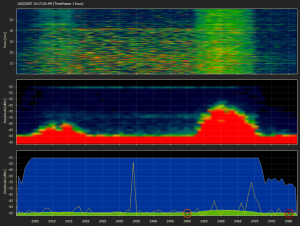
I’ve been keeping an eye on our new wireless (SonicPoints!), and noticed something interesting… This 60-minute image was captured at 10:17. Can you guess what time people started coming into the sanctuary?
Wow. What an experience that was. I want to make my own take on Clif’s commentary.
Here’s a neat new idea from Terry Storch and the folks at LifeChurch… It’s called “YouVersion” and launches this week. The Bible has just gone Web 2.0! I can see some really cool potential if I can use this from my smartphone and add notes and commentary during sermons, and if preachers can feed XML with tags and scripture references. Hello, mashups!
I’m really starting to loathe support calls to vendors.
I’m spending Labor Day weekend at Andrea’s dad’s place in Valparaiso, IN. Much needed grandkid time for him, mini-vacation for us.
Today is day 2 of the Willow Creek Leadership Summit. Naturally, I have pictures!
I’m currently sitting in the departure area at Kansas City International’s Terminal C awaiting my flight to Denver. This all came up rather suddenly last Friday afternoon when I got an E-mail from Bill English at MindSharp, offering me a seat at one of their SharePoint training events. The only one they had scheduled for Kansas City this year was the course for SharePoint Designer 2007, which Bill admitted probably wasn’t quite what I needed. After a quick jaunt through their course schedules, I found that they were offering the SharePoint Administration course this week in Denver. Since I have family in Denver, that made it easy to do on a church budget. After some fortunate timing involving Clif showing up online (he’s in Texas for the next few weeks) and getting his approval for my travel expenses, a plan was put together. The original plan was to load up the minivan and whisk away my lovely wife and two adorable daughters for a week, but we weren’t able to secure the time off for her, so I sadly have to go to Plan B, which means I go by myself. On the other hand, driving is an expensive way to go at the standard IRS mileage rate, so I booked myself a flight and a rental car on Friday night and saved the church a few hundred bucks in the process.
I was perusing a technical support community on LiveJournal today and ran across an entry that made my jaw drop.
As most of you in the IT world have figured out, Congress’ well-meaning push to save $30-odd million a year in energy costs has ended up costing the IT industry and the economy considerably more than that in the changeover.
Yesterday, a building in the Waldo neighbourhood of Kansas City burned to the ground. The building housed, among other things, a cafe, a bar, and a bridal shop.